
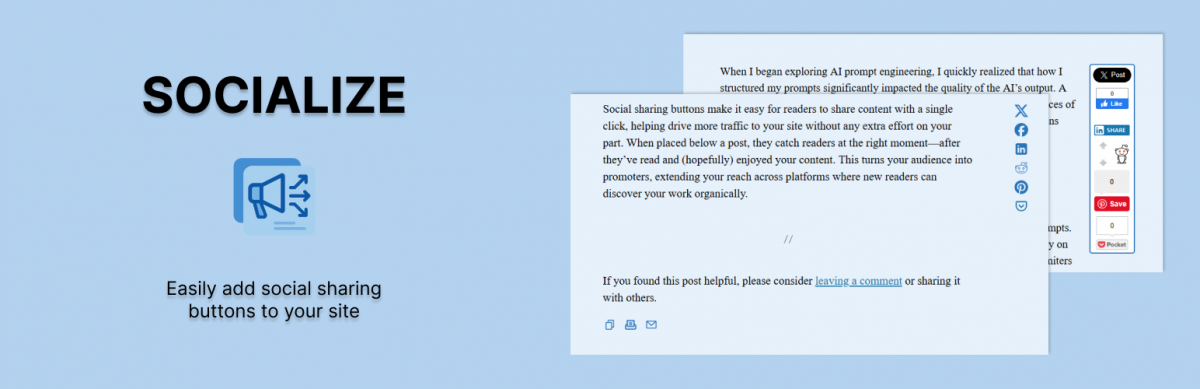
Download | Official WordPress Plugin Page
Table of Contents:
- What is Socialize?
- Socialize Supported Services
- How is Socialize Different from Other Social Sharing Plugins?
- Installation
- Socialize API
What is Socialize?
Socialize is the easiest way to selectively add actionable social sharing buttons to your posts. It supports both official share buttons and lightweight SVG alternatives. Share counts are no longer reliable across platforms, but a well-placed reminder to share is still effective and remains a common part of good UX.
You can add social sharing buttons in three places:
- Inside the content
- In a floating bar alongside the content
- In a customizable box below the content
I created Socialize to solve a few problems I had with other social bookmarking plugins. I believe that using thoughtfully placed, relevant sharing buttons encourages more meaningful engagement. Actionable social sharing buttons, whether official or custom, offer your readers a simple, clear way to share your content without cluttering the experience.
I also believe that selectively displaying only the buttons that perform well for your content makes them more effective. Why? Because when something feels active and important, people notice. That subtle social proof still works, even without the numbers.
The plugin was designed to make managing buttons simple and intuitive. Instead of dealing with extra meta fields or clunky shortcodes, there’s a settings panel built into each post editor where you can choose which buttons to show and in what order.
You also get a call-to-action box below your posts. This section can be used to ask readers to comment, share, or take another action. It can be customized globally or on a post-by-post basis. The potential here is huge, every post gets a built-in CTA, and you decide what it says and how it looks.
There are all sorts of display settings for the buttons and button types. You can change the appearance of the inline, floating, and CTA layouts from within the plugin settings. Everything is built to give you control, without getting in your way.
Check out some screenshots of Socialize on WordPress.org
Supported Services
Socialize supports a range of popular sharing and utility actions out of the box. You can choose between official share buttons or clean, fast-loading SVGs. Current supported services include:
- Twitter (X)
- Copy to Clipboard
- Print Page
Each button can be enabled or disabled globally or per post. You can also choose whether to show them inline, in the CTA box, or both. Button order is fully customizable, and you can mix and match SVGs with official buttons based on your design and functionality needs.
How is Socialize Different from Other Social Sharing Plugins?
Most social plugins try to do too much, or worse, they assume you want the same buttons on every post, in the same place, with the same styling. Socialize was built to be flexible without being bloated.
You decide which buttons to show and where to show them. Every post can have its own setup. Want different buttons for a tutorial than for a personal essay? Done. Want to test button positions? No problem.
The post editor includes a simple panel where you can toggle buttons, reorder them with drag-and-drop, and customize your CTA message. There’s no need to mess with shortcodes or external settings screens.
The built-in call-to-action box is another major difference. Most plugins treat social sharing as a bolt-on. Socialize treats it as part of the content experience. The CTA box can be styled to match your theme, customized globally or per post, and used to drive comments, shares, or any action you care about.
And because Socialize doesn’t rely on third-party scripts unless you choose to use official buttons, it stays fast, lightweight, and respectful of your site’s performance.
Installation
Download the plugin from the WordPress Plugin Repository or upload the ZIP directly through your WordPress admin.
Activate the plugin through the Plugins menu in WordPress.
Go to Settings → Socialize to configure your global defaults:
- Choose which buttons to display
- Set your default call-to-action message
- Adjust styling and layout options
When editing a post or page, use the Socialize panel below the editor to:
- Customize buttons per post
- Reorder buttons with drag-and-drop
- Override the global CTA message if needed
Final Thoughts
Socialize was built out of necessity—something lightweight, flexible, and thoughtful that didn’t force one-size-fits-all decisions onto every post. It’s been shaped by years of real-world use and continues to evolve with modern best practices in mind.
If you value control over where and how people engage with your content, Socialize gives you the tools without the bloat. Customize as much or as little as you want. Keep it simple, or lean into the more advanced features. It’s your site—Socialize just helps people share it.
Have questions, feedback, or feature requests? Get in touch or leave a comment on the plugin page.
532 replies on “Socialize Plugin – Social Sharing for WordPress”
[…] in single page or home page Download: Free Author: http://jonbishop.com/socialize/ Source: […]
[…] Socialize […]
Good Stuff, is there a way to set it so that by default (for old posts or posts with authors that are not good at following instructions), there are a set of chosen sharing icons in the box below the post for all posts?…
There are two things I want to do.
1) Exactly what you said
2) Make it easy to switch from other popular plugins to mine (ex: WP-Digg-This to Socialize)
I’m hoping to have the first feature up and running by the end of the weekend. Would have been handy for my own blog but I just went through manually and updated over 100 posts …. not expecting others to go through the same.
Cool, let me know… Id love to know when that works cause I cant update my 1600+ posts 😉
[…] Socialize […]
[…] Socialize […]
[…] Socialize – The plugin was designed to make it very easy to manage. Instead of adding new meta keys, like other plugins require, there is an additional panel in your posts admin page that allows you to select which bookmarks you want to display. This is to encourage people to choose more relevant bookmarks for their posts. […]
[…] Socialize […]
[…] Socialize – The plugin was designed to make it very easy to manage. Instead of adding new meta keys, like other plugins require, there is an additional panel in your posts admin page that allows you to select which bookmarks you want to display. This is to encourage people to choose more relevant bookmarks for their posts. Share and Enjoy: […]
Love the fact that it looks like you added this functionality in the new update. However, for some reason, it has slowed down the single pages tremendously…. In fact, they wont load unless I deactivate the plugin. Any ideas?
It might be because the new Facebook button I integrated as the default (fbshare.me) is currently down so the javascript that displays the button might be getting hung up. Try switching to the other facebook button in the settings panel
I’m having the same issue. It hangs up on a few of the buttons (different every time but mostly stumbleupon) and the rest of the site won’t load.
Nope, Tried it but no luck. I even deactivated the facebook button entirely… hm….
It’s always something with WordPress. I’ll try and dedicate some time tonight to try and figure out what’s going on.
Thanks for the heads up.
So I just installed your plugin … It added the links to all old posts, but doesn’t use the default settings for new posts. I have to go in a check off the boxes when I create a new post. What am I missing?
That’s on my list of to-dos. I should have that working properly by 0.3
Any updates? I cant figure out why the pages wont load….
[…] Socialize […]
I uninstalled until the fixes are implemented. Please keep me updated.
Also, could you possible add Yahoo Buzz?
Thanks!
-Stacy
I’m going to try and release a small fix tonight that takes care of some of the bugs mentioned.
I’ve been pondering Yahoo Buzz for awhile now, all I need was a little reinforcement and I think this is it. I’ll see if I can roll it into the release tonight.
Using it on my site and look forward to the future features discussed in the comments.
Just want to thank you for your efforts; keep it up.
My suggestion: Feed integration like TweetMeme has.
Thanks.
I’m hoping to get a major release out soon with a new control panel and more control over placement.
[…] and I want an easy way for them to find what they’re looking for.Speaking of my plugins, my Socialize plugin allows me to selectively add social bookmarking buttons to my posts. After awhile it’s pretty […]
Jon: You’re doing some big things here ! Glad I found your work. I just put your socializer plugin on 2 of my blogs.
Great work !
Great plugin!
Could you please add Yahoo Buzz?
Thanks,
Sudha C Reddi
Oh, man! I thought I had this all set up but I don’t see anything in my posts. Not sure if I still have to manually add this to old posts?
If you set up “default” buttons in the settings then they should be showing up. I do know of a few glitches I’m still trying to work out but overall the plugin is very functional.
Anything else that might give me a better idea as to where to look?
If not, no worries, I’m still constantly testing the plugin and might be able to figure it out on my own.
I was running into the same problem that the site wont load or gonna very slowly, what I did was deactivating wp-minify plugin.
After that the site loaded in the normal speed.
Thanks for this great plugin.
Hi! I just installed your great plugin. The buttons show up when I preview the post, but they don’t show up on the actual post. Any ideas why that might be?
Nevermind, I think it is working now.
[…] Socialize – Socialize is the easiest way to selectively add actionable social bookmarks to your posts. The plugin was designed to make it very easy to manage. Instead of adding new meta keys, like other plugins require, there is an additional panel in your posts admin page that allows you to select which bookmarks you want to display. This is to encourage people to choose more relevant bookmarks for their posts. Visit Socialize Plugin site […]
Great plug-in. It’s working fine for me but I do have one small issue.
When I use another plugin, let’s say Yet Another Related Posts Plugin, it pulls the first line or so from a related post BUT, instead of the first few words of the post, it displays something like this: “tweetmeme_url = “http:/…”
The same goes for when using this with Thesis teasers. Any of the teasers display the code instead of the content. Is there something I’m doing wrong?
Hey Andrew,
This is currently a problem with the plugin. I need to edit the content filter to fix this but certain fixes would remove it from the home page altogether.
I’m still trying to figure out the best way to approach this problem.
Looking forward to it! If I find a workaround in the meantime, I’ll be sure to let you know. Thanks again for a great plugin.
If you hide the script variable definitions using then it works. Very easy fix:
http://www.javascripter.net/faq/hidingjs.htm
I just added them to the createTwitter() function where tweetmeme_url and tweetmeme_source are defined.
“If you hide the script variable definitions using <– and //–> then it works.”
I’m getting a similar problem, in that the text “share” is appended just before the text of my posts in the front page teasers? I’m looking around to see if I can hide this using CSS, but perhaps someone else has a better solution?
I discovered the source of my problem and was able to create a work-around.
The issue was the linked text “share” that was used in the Facebook button in the socialize.php file. I replaced the text with a linked image instead and it worked beautifully.
Hey,
just installed the plugin and I can’t seem to find a way to add custom icons for the different share buttons. Any help?
Thanks,
Sanja
Hey, Great plugin! I love it. 2 issues though.. If I schedule a post the buttons don’t appear until I go into the post and manually select and save the socialize buttons. Also, if I quick edit a post it resets the socialize button defaults. Do you know how I can address these problems?
Mine does the same thing. Kinda a pain. But great plugin!
Anyone found a fix?
I still need to figure out when the meta data is getting reset … it’s happened to me a few times too and it is pretty annoying.
first of all, congrats and thanks for the awesome plug-in!
i have a question can the alert box parse php? i want to add the date, category and tags to the box.
This entry was posted on and is filed under .like that
Your best bet might be to override the code .. I can send you a custom version of the file if you like with direction on where to edit.
🙂 that would be great, thank you
Thanks for the plugin. I always tried to use social media icon manually on my theme. I saw only a minor issue.. In this plugin social media links are do-follow links. Search engines can see those extra links doesn’t exist… You can add no-follow for those social media widgets to get optimize seo. Thanks again for the plugin.
This is very cool, Jon! I had previously used both the Backtype Tweetcount and Facebook Sharecount plugins; but upon your above advice, I deactivated them and installed Socialize. I like how each post can be configured to selectively show inline or alert box options. Nicely nice.
You can see this in action, for instance, on my tips to use LinkedIn.
[…] will have a nice way to send your posts to FaceBook, Twitter, Digg and many, many others. (Thanks Jonathan Bishop for this great […]
great work you’re doing here, the only thing is that for my fotoblog the fbshare.me option doesn’t give me an image for the link?
maybe an option to override the fbshare.me and go just with the original facebook link?
Work has kept me busy but I’m going to be looking into the new facebook button for my next release
tried downloading this plugin on my iblog2 theme but no joy. am I missing something?
If you share your blog here we can take a look
I tried a bunch of plugins too and like this one the best by far. Only one request: I’d like the in-content button to be able to float:right instead of float:left. A checkbox or a text field for putting in my own CSS would be great.
For now, I just updated socialize.css directly.
I’ll keep this in mind for the next update. Glad you enjoy the plugin.
How do I fix this??? the code for the tweet count shows up in my feed?
tweetcount_url = “http://asiteforwomen.com/free-offers/share-tips-for-saving-time-money/”; tweetcount_src = “RT @@redkathy:”; tweetcount_via = false; tweetcount_links = true; tweetcount_size = “large”; tweetcount_background = “80b62a”; tweetcount_border = “CCCCCC”;
I know it’s probably my template but I’m a newbie so any help will be greatly appreciated. I so love this plugin, Thank you
Go into the socialize settings and uncheck “Display Inline Buttons On All Pages”. That will remove the buttons from everywhere except posts.
Thank you Jon for the response. I did that with no luck. My feed still shows all that code. Any other ideas
What’s your website. It shouldn’t be inserting it if you have that option unchecked.
It worked, duh I didn’t clear my browser! Thank you again.
Thanks for great plugin!
I have some suggestions though. In my blog .post img is styled so the icons of Delicious and Stumbleupon are messed up. There should be way to fix that.
I’d wish the plugin to be more accurate in layout of buttons and icons as well.
Awesome piece of social marketing. It actually makes a difference and is very well thought from the beggining.
Few flaws I’ve found:
1. it doesn’t show in the blog’s home page.
2. Icons are a liiiitle bit too big. Try 2/3 of the actual size and more resolution. Contact me and I’ll help you gladly.
3. More services available would be great.
LOVE this plugin — thanks for all your hard work.
My dilemma: I want the buttons to show up on both the single post page as well as the index page, and if I check “Display Inline Buttons On All Pages” in the plugin settings, this of course works. However, on the Category and Archive pages (and I suspect anywhere where there is an excerpt), I get:
tweetmeme_url = “http://example.com/2009/12/permalink/â€;
tweetmeme_source = “tweetmemeâ€;
The only way to avoid this is to comment out $text = strip_tags($text); from the excerpt creation in formatting.php, but then I get the buttons on the category and archive views, and I don’t really want them there because they extend far below the length of the excerpt.
Help! Is there a solution? I really love this plugin and want it to work!
Is there any way i can place it other in different location.. For example i want to call the plugin from wordpress theme manually, or want to place it on the right side ??
Hey everyone! Jon, LOVE the plugin! I just got started with blogging, and this makes updating everything easier. My question is, new posts don’t have the buttons next to them – I have to edit the posts, and manually check which social sites I want to list. I do my post externally and upload them, is this the problem? I just prefer to use my own program vs. WordPress online editor. I do have the inline thing checked, but have the alert box unchecked, as it was taking up too much space. Any ideas as to how to get it to automatically update each post with the social links? Thanks a bunch!!!
All working beautifully up to a point. Every page and every post has an in-body tweetmeme icon. Every page but one: http://www.cdpcelebration.com/when-advertisements-were-better-than-the-programmes-they-interrupted/tv-cinema/Looking at the source code for the page it seems to have included only part of the socialize code:
Whereas on other pages it includes the full script:
tweetmeme_url = “http://www.cdpcelebration.com/when-advertisements-were-better-than-the-programmes-they-interrupted/”;
tweetmeme_source = “tweetmeme”;
Any clues to what’s going on?
Looks like the message box has made scrambled egg of my lastcomment. In a nutshell Socialize code isn’t being inserted properly into one of my pages: http://www.cdpcelebration.com/when-advertisements-were-better-than-the-programmes-they-interrupted/tv-cinema/ Whereas it is working fine on all other pages and posts. I wondered if you could shed some light on what might be going wrong.
when i edit a post the socialize buttons dissapear…
any way to make this not happen?
Hey Jon,
Your plugin is awesome, i went through 30+ plugins and finally shortlisted and am using your plugin. Its serving my needs very well indeed, however i have one problem, as mentioned earlier, the buttons don’t show up when a scheduled post gets posted.
On my site, i schedule posts months in advance and getting back to every new post and editing it is a big pain.
Is there any solution?
You can even reply to me via mail or i’ll frequent this page for a reply. The site in question is the one attached to my name on this comment.
Thanks.
Syd.
Thank you for the nice plugin.
A serious problem there is, viewing the RSS of posts, as well as any other service of the billion social services that rely on the RSS that feeds them excerpts of the post, displays not the post, but the following lines before the post:
tweetmeme_url = “http://POST_LINK”; tweetmeme_source = “tweetmeme”; var fbShare = { url: “http://POST_LINK”, size: “large”, google_analytics: “true” } digg_url = “http://POST_LINK”;
After it comes the content of the post.
This happens in my RSS feed page:
http://feeds.feedburner.com/al-rasid/armedia
And in the other services that rely on that feed, for instance, NetworkedBlogs in Facebook:
http://apps.facebook.com/blognetworks/blog/%D8%A7%D9%84%D8%B1%D8%A7%D8%B5%D8%AF_%D8%A7%D9%84%D8%A7%D8%B9%D9%84%D8%A7%D9%85%D9%8A/
Strangely, this happens with only one of my blogs, the other two appear parsed okay with no problem.
What could be causing this?
If was a CSS expert, I probably wouldn’t be asking this, but I was wondering how I can move the buttons out of “in-line”. Perhaps have them just show up horizontally at the top or bottom (without having to open the post). I’ll try to find the code, but if you know a quick way to do it, it’d be most appreciated. Thanks in advance.
Great plugins. Thanks for sharing!
Hi Jon,
There’s something faulty with Socialize — with Thesis version 1.7, though I can’t imagine the theme is to blame.
But when clicking the retweet button at the bottom of my posts, for instance, I now see:
http://twitter.com/home/?status=RT%20@ariherzog:%20Why%20the%20News%20Sucks:%2083%%20is%20Not%20New%20%E2%80%94%20AriWriter%20http%3A%2F%2Fbt.io%2FEnFuHey Ari.
Just looked into that quickly and it looks like its a problem with the BackType TweetCount Button. For that specific post you tested with, your title seems to break when being passed through to backtype because of the % sign. Backtype goes as far as trying to send the improperly coded data to twitter which breaks when it gets to the % sign. There’s nothing I can do about this. You can change to TweetMeme if its really a problem or change your title. I will send a note to BackType and hopefully theyll look into it some more.
Hi Jon, i uninstalled other plug ins and started using yours. There are some problems that you need to fix.
In my home page it displays correctly but if you want to browse other categories then you can see code like this on the top of every post content.
tweetmeme_url = “http://www.intominto.com/20-abstract-digital-art-by-andy-gilmoreâ€; tweetmeme_source = “tweetmemeâ€;
I am having same problem with RSS feed also.
If you can solve these problems, i think many bloggers are going to use this plug in.
Thanks
digg_url = “http://www.intominto.com/looking-at-the-flag-designs-of-different-states-of-america”;
reddit_url = “http://www.intominto.com/looking-at-the-flag-designs-of-different-states-of-america”;
reddit_title = “Looking at the flag designs of different states of America”;
Hello, nice plugin!
One strange thing: I check “twitter” and “Facebook” when writing a post but if I delay the publication the box will be published unchecked.
Any idea?
Are you using the most recent version? I though I addressed this problem in the last update.
Yes I’m using the most recent version downloaded here: http://wordpress.org/extend/plugins/socialize/
Ah and the download link: http://downloads.wordpress.org/plugin/socialize.0.4.zip is 404 file not found
Oh dam, thanks for the heads up. Fixed the link.
I’ll go back and see what I can do.
Good plugin… very useful
Hi Jon,
I’m building a new blog, and I LOVE the sociable plugin. It’s really fun. I was wondering if you’re going to update it to include the new Facebook Like button? I’m using a different fb like plugin, and it’s putting the fb button next to the Tweet button, with no option to move where it’s displayed. If you put the like button in an update, having it display as the first button in the series so it displays on top of the tweet button, that would be perfect. Just a suggestion.
Hi John! I’m just curious, is there a way to disable the alert box in other pages? Because even in contact/about page, the alert box is still there. I want it in my posts page only..
Not currently but this is something I would like to add.
Great plugin. Am using it on my site and have also included it in one of my posts about essential wordpress plugins
Great plugin,but it will be good if can incluse Google Buzz & Yahoo Buzz Up.
Hi John, great plugin!
Is there a way to put the icons in the top right corner of the post instead of the top left corner?
[…] Socialize […]
I wrote down all of your changes and added them all to the plugin. Let me know what you think.
Hey Jon,
I’ve commented earlier here and am waiting for you to fix the bug in which the box doesn’t show up when scheduled posts are published.
My site highly depends on this as i schedule my posts weeks in advance and have to literally go everyday and ‘check’ the social bookmarks to be added from the backend.
I’ve subscribed to the comments and will wait for a reply.
-Sydney.
Sorry about that Sydney, I thought I addressed this problem in previous version. I’ll try and recreate it on my test blog and see whats going on.
Hi Jon, just wanted to let you know I just added the socialize plugin to my new site (running WP 3.0 w/ the “intrepidity” theme) and as soon as I activate the socialize plugin, the homepage of my site displays “Fatal error: Call to undefined function get_post_thumbnail_id() in /home/content/23/6312823/html/wp-content/plugins/socialize/socialize.php on line 55”
This is without making any other changes besides activating it and then re-loading my page. If I deactivate it, the page goes back to normal (which, admittedly is pretty empty since it’s a brand new “shell” for me).
Just thought you should know.
Thanks for putting this together – I’m looking forward to being able to use it.
I’m not sure about your level of development skill but if you try adding “global $post;” right below “function createBuzz(){” it might make it work. If it does let me know and I’ll commit the changes and go to version 1.1.2
Never mind, I figured out what was wrong and made the edits. Version 1.1.2 should be available in the plugin repository shortly.
Hi Jon, why is that after I upgraded to the latest version, the alert box stopped working.. Is this a bug?
Hi, you know what. It’s weird.. The alert box is showing again after I checked the box that says add buttons in posts. Because before, I only have to check the checkbox for alert box, but it doesn’t work now. I still have to check the buttons checkbox even though i don’t really use the buttons..
Thanks for bringing this to my attention. I just updated the plugin to fix this.
Hi John,
Thanks for responding on Twitter. I downloaded the plug-in but I think perhaps there’s another step I need to take to activate…? Or perhaps I’m just overlooking something.
Anyway, thanks for your feedback.
http://www.tayloryou.com/blog
Seems to be working fine now. Are there still any problems?
Hey Jon,
Looks like a great plugin, thanks much for putting up the effort to do this. Unfortunately, I have to ask for help… For some reason, I’m getting this error line when I tried to activated Socialize…
Fatal error: Call to undefined function current_theme_supports() in /home1/nikolast/public_html/wp-content/plugins/socialize/socialize.php on line 55
Any ideas why? Tried quite a few permutations of checks and ticks already but none seemed to work. For now, am taking it off the site because it makes the rest of the page below it no longer visible…
Cheers, and thanks much!
-Nik
The plugin works best on WordPress 2.9+. You are using WordPress 2.7.1. Unfortunately I cant help you until you upgrade.
Ah I see that’s the problem! Thanks much Jon, I’ll update and try again.
And…. that works like a charm. Thanks so much! Great plug-in!
Hey, just installed Socialize, and love the plugin, but for some reason Google Buzz does not work. I can’t get it to show up in either inline or the alert box, it acts as if I have it not selected. Facebook and Twitter worked just fine for me, however. Any idea why this may be happening?
I already found the issue, thanks for pointing this out. You should be able to go into posts and enable/resave it and the button will display. I will fix it so the default functionality will work in the next version.
Hi again Jon, thanks for the help earlier. The plugin works like a charm now on my site, and it looks great! Thanks so much…
There are however, a few instances where… weird things happen. It’s no big problem, just some aesthetics… But it got me wondering and curious, is there something wrong that I’m doing?
Here’s a screenshot of the “weirdness” that happens every now and then… they’re just random as far as I can see…
I’m not able to attach images it seems…
Here’s a link to the screenshot…
http://unearthingasia.com/wp-content/uploads/2010/06/plugin-question.jpg
The issue with Google Buzz is there is a problem in the code where if you have Google Buzz checked to be displayed by default it wont display automatically. This is because of an ID conflict when I added the new buttons. This will be fixed soon and should prevent it from displaying when it is not supposed to.
The Facebook problem is Facebook’s fault. Their button doesn’t display a number if there are no shares. This is why I included the alternative fbShare.me button. You can switch between the two in the settings
I’ve turned on the error_reporting to E_ALL for development reasons and your plugin seems to spew lots of Notices in the dashboard.
Take a look into it
Hi,
thanx for the wonderful plugin.
I had some problems and I hope I’ll find help here:
I just updated to the new version and then realized, that with the update all my option was overwritten. That cant be right. Did I forget to set a switch that my options are kept on updating?
I use the “Follow Widget”; when the mose is over the icon/link there is no tooltip. Is this correct? It’ll be great if the title-tag is integrated into the links of the widgets. It should be the text of the links you are using in the widget.
Bye Marc
Hi I love the plugin
I just want the thing to work its so annoying. When I attempted to share posts from my home page it attempts to share from my products page. this only happens from my home page, everything else is cool. My home page (posts) is the most important to me. what shall I do? Please help?
my blog http://www.deanferracho.net
Thanks
[…] your site. There are numerous social media plugins but my favourite two are either SexyBookmarks or Socialize These two plugins work like a charm. Activate the plugins as normal then go to their settings panel […]
[…] Socialize […]
[…] Socialize […]
[…] Socialize […]
[…] Socialize […]
Love your plugin 🙂
I am having an issue since installing it earlier yesterday. I’ve published two posts since installing it and Tweetmeme doesn’t seem to be counting how many retweets there are. It just shows zero.
The other thing is that Facebook share is collapsed until one actually hits the button. It is counting shares however one can not see the number of shares until one hits it.
I am using the alert box setting only.
Happily, all my previous posts are showing the proper numbers of shares and retweets except for any new posts that I create.
I am using WP 3.0 and the Thesis Theme 1.7.
Thank you for help in advance and for creating such a wonderful plugin!
Sometimes TweetMeme can be a bit buggy as can any javascript. I personally use the backtype tweetcount button instead and am very happy with it.
The facebook button issue is also facebooks deal. The button is displayed at 1/3 of its height until it has a number to display. Its quite a bummer. I personally use the fbShare.me button instead to combat this problem.
Both of these settings can be switched under Settings -> Socialize
Thanks so much for the quick response Jon. I’ll try switching to the other buttons instead. Have a great day! 🙂
Jessica, we are having the same experience with the official facebook share button where it shows the number of shares only immediately after you hit the button to share. Once you come back into the post or page, the button is collapsed, not showing the number of shares.
We know we have shares because the fbShare.me button shows the shares when it is turned on.
There wouldn’t be in some kind of lag in reporting with the official facebook button, would there? Surely, the version of wp is not a factor, if using a current version.
We’ll probably continue to use the fbShare.me button, but I am curious as to why fbShare.me will show the shares but the official button won’t.
Thank you Jon for the great work that you have done with plugin.
don’t think fbShare.me actually knows how many shares that a post has on Facebook. I’m pretty sure it relies on its own click-throughs to figure out how many times something was probably shared.
Okay, so what’s the answer for this? How do I use the Socialize plugin, but ensure that the number of tweets and FB shares are displayed/
okay, I found these instructions for fixing this and it worked.
You have to download the FB.Share javascript right on your server, and tweak one character.
Then replace the link to the official FB.share file in the socialize.php file (for this plugin) with a link to the tweaked code on your server. I saved the tweaked file within the socialize plugin folder, which made it easy to find and link to.
Now my posts show how many FB shares there are, even if that is 0.
okay, I found these instructions for fixing this and it worked.
http://www.pmkelly.com/2010/08/facebook-share-button-count/
You have to download the FB.Share javascript right on your server, and tweak one character.
Then replace the link to the official FB.share file in the socialize.php file (for this plugin) with a link to the tweaked code on your server. I saved the tweaked file within the socialize plugin folder, which made it easy to find and link to.
Now my posts show how many FB shares there are, even if that is 0.
I’m still looking into this. Not sure if modifying the fb.share.js is the correct path.
Jon, more accolades for sure. Nice and simple. I am having one issue however. The plugin doesn’t seem to display on the homepage when excerpts are enabled. Are you seeing other feedback like this? I’ve flipped through a few themes to test and they all recreated the issue. Bizarre. Thanks!
Im having the same issue as Jade. Home page with Excerpts only showing has no icons. Displays in full Post ok though. Also not showing in Feed.
Hi, I use this plugin in one of my blog actually work in progress. I have a problem with your plugin.
http://twitmix.oneden.net/2010/07/14/hello-world/
I activated inline social button for Twitter, Facebook (with fbshare) and Buzz but I can see only Twitter. If i deactivate Twitter, I see however only Twitter. If i deactivate all… I see always Twitter.
What I have to do? Thank you
Solved. Was my fault in single article Socialize settings.
Bye.
I am so glad to have found your plugin. It is by far the best one I have used yet, however, I am having a problem with Facebook posts that I am thinking start with the Socialize plugin. I keep getting a the words “Share 0savesSave” after the header and before the content on my Facebook fan page wall.
http://www.facebook.com/pages/The-Desk-of-Brian/129518973743309?v=wall#!/pages/The-Desk-of-Brian/129518973743309?v=wall&ref=mf
I switched from twitterfeed to Hootsuite, to see if that was the problem. I also checked my Reddburner settings and everything seems to be fine. So I am trying to figure out where this may be comiong from. That is why I am here. Once again, I love what you have created, just hope to resolve this issue f it is indeed a Socialze fix.
Thanks, Brian
Brian,
did you ever get this fixed? I am having the same problem.
Share 0savesSave
Thanks,
Wayne
I need to get this fixed for some of my own sites. It has to do with the way the Twitter and Facebook buttons work.
Stuff is piling up but I will absolutely get this fixed ASAP. Until then it might be best to only display buttons on posts/pages.
Hi Jon, great plugin! Congrats!
I have some problem with NextGen Gallery you can see it here http://www.inforepuestos.com.ar/blog/index.php/2010/08/01/comenzo-la-produccion-del-c3-aircross-y-llegara-al-pais-en-octubre/
I can´t get the plugin and gallery place in the same row. Thanks!
I love this plugin.
However,
it works in single post and in the feed, but the buttons won’t show on the main page, search results or archives.
Hi Jon, Im having an issue with the facebook share button now, it only shows the URL of the page when it is shared, no icon or image, no title of the post or description or anything. Also, the fbshare.me button doesnt even do that it just creates a shortened url which it wants to post, which doesnt help without a post title or other information. Is there more informaiton it is supposed to be posting? More like the Like button I guess? It just seems like I have set something up wrong. Any clues? Thanks Jon and thanks for the great plugin 🙂
Jon, this is a really sweet piece of code. I just read through it, you laid it out really nicely. I was looking for a metabox example, and yours will be perfect!
Nice Plugin
How can I move the alert box to the top, above the post. Is there a piece of code for the Alert box that I can insert into the top of my single page? Other than that problem, I love this plugin.
Hi Jon,
Your plugin is great…except I’m not sure when this sudden bug happened. I remember initially I was able to select and unselect the Alert Box Social Buttons to whatever I wanted but somehow it never does anything now and keeps sticking to the last 8 icons that I’ve used. Could it be that upgrading to wordpress 3.0.1 caused this bug? thanks!
Oh nvm….please disregard my previous post. I thought the global settings in the settings panel would overwrite all my post setting. It seems that I have to individually modify the setting in each post.
Hi, thanks for your plugin …
You plan to integrate the original button twitter?
http://twitter.com/goodies/tweetbutton
Absolutely
So… When is it comming? 🙂 It would be great!
Newbie question — If I have a number of people sharing my blog content on Facebook, is it possible to find those? Is there some admin backend for the Facebook/Twitter buttons where I can see who shared it?
Hi Jon,
thank for this great plugin! This is exactly what i’m looking for. Tweeted & Followed…
Only one question:
I can’t found in Posts something about “horizontal/vertical”…
I’d like the “top-in-content-button” to be able to: “float: horizontal” instead of “float: vertical”.
It would be very practically choose a option/checkbox for top and foot buttons – horizontal or vertical…
Maybe in next update? 😉
Definately something I can look into.
Thanks in advance…
Any possibility of adding the official twitter button?
ack sorry, didn’t see the question had been answered previously! Sorry about that. thanks for a great plugin!
Hi Jon,
Love Socialize. In fact, after going through all the social networking plugins on WordPress.org, I was very happy to find it. Exactly what I was looking for. Unfortunately, I ran into a failure to play nice between Socialize and Read More Right Here (http://wordpress.org/extend/plugins/read-more-right-here/), an ajax plugin I use to reveal the “read more” content of a post right on the front page. When Socialize is active, clicking on the “read more” leads to a hung, blank page on one computer and on another computer a post page with only the alert box and no side buttons. Figure that out.
Anyway, not your responsibility to make Socialize work with every plugin out there, but if you have any thoughts I’d be interested.
hello, i used your plg in my site http://greenhost.gr/ it was helpfull. thanks for that
Hello. I’m unable to get the facebook share option to work? The twitter one works fine, but the facebook share button won’t show at all on my posts? WordPress 3.0.1
Thanks
Make sure that the Facebook button is selected under Settings -> Socialize -> Default Button Settings -> InLine Social Buttons.
@Jonathan Bishop:
Your plug-in is interfering with the bullets. You can see what I mean here: http://hellotecnologia.com/blog/iphone/actualiza-tu-iphone-ipod-touch-o-ipad-al-nuevo-ios-4-2/.
Also, can you allow more location on Top Button Location?
For example, Top Center?
Can you include a Like Button?
Thanks for this wonderful plugin!
This is hard to fix because every theme handles css a bit differently. I’m slowly tweaking the CSS over time to get the most broad support. I’ll see if there’s anything I can do to get this resolved.
Excellent plugin, Will donate soon !
Thanks!
Great plugin, especially the “call to action” box! I’m already in love with the plugin :-).
Still, I have one request: could you insert an option to remove the call to action box from pages? I want to have it on individual posts, but not on pages.
Thanks!
Another error I found: when displayed on the main page, the Twitter button won’t parse the post title but only the blog title. The Facebook buttons works fine.
I’ll try and get that first request in the next release. I’ll have to look into the Twitter problem.
Great Plugin I love it. Linkedin just released a Share button, can that be integrated in future updates?
Adding this as we speak … er as I comment.
Thanks for the heads up. Socialize is now one of the first to support the new LinkedIn Share button.
Great plugin!! Thank you!
One issue I am having is I cannot seem to tweak it to get the icons off all my pages and only onto my blog section of my site: http://www.oahurentalvacation.net.
Any ideas for me??
Thanks a million for this plugin, it will be great!
I’m making some tweaks right now. Going to add an option to exclude the Call to Action box on posts or pages
Great Jon, looking forward to that…Please post it when it is ready!
I added this feature and uploaded it to WordPress.org. Updated the plugin when you get a chance and let me know how it worked.
Jon, where do I update the plugin from? The WP-admin on my site somehow?
Yes, on the plugins page their should be a link near socialize asking you to update. Sometimes this can be a bit delayed so you might have to just check back later.
Hi Job,
Great plugin! Just one hiccup: the words “tweet & share” show up as part of the post on the home page. any way to disable that? Screenshot: http://dl.dropbox.com/u/10895160/Screenshots/2o98fok~yhmr.png
and by Job, I meant Jon—sorry about that!
This has t do with the way your template is displaying content on the home page. I hope to have this fixed for the next release as I noticed it on another blog. However, I am not sure there is much I can do because the template is basically striping out any javascript or html. I’ll check to see if there are different filters I can use to combat this problem.
Thanks Jon—I appreciate it!
Dru: I was having the same problem with a new template I am using in my site redesign, the words tweet and share are displayed instead of the buttons. Except, I DO want the buttons displayed. the template I’m using has these tagged as excerpts (class=”excerpt”). I looked at the source on your website and yours are also excerpts.
My solution: To make the buttons appear I added the line add_filter(‘the_excerpt’, ‘insert_socialize’); to socialize.php.
Jon, it would be great if you could add this in a future release, and maybe a way to disable the buttons on excerpts for people that don’t want them there.
Nice plug-in. Thanks!
Thanks Sebastian. I’ll put this on my list of to-dos for the next release. I’ve already begun doing a complete rewrite for this plugin to make it faster and incorporate as much of the input in these comments as I can.
Hello Jon / Dru
I’m having the same issue with the words “tweetshare” being placed into the beginning of my “excerpt”. Is there a fix or work around for this yet?
All I have come up with is changing excerpt to content.
Thanks
Hello,
This plugin is great! However, I’m having just one issue. The bottom of the official Facebook Share button is always flush against the button below it in FireFox and Chrome. Looks fine in IE though. I tried testing a few buttons below it so I can tell it’s a Facebook button spacing issue. I tried tweaking the CSS to add padding, and it adds padding to every button EXCEPT the bottom of the Facebook button. I’d just put the Facebook button at the bottom, but I can’t figure out how to reorder the buttons so that my LinkedIn share button is above the Facebook share button.
Any help would be much appreciated! I have the plugin live on my blog now so you can see what the issue is.
If you open socialize.php and move
if(in_array(2,$socializemeta) || (!$keyexist && in_array(2,$defaultsharemeta))){ $buttonDisplay.=$before_button.createSocializeFacebook().$after_button;}so it is right below
if(in_array(22,$socializemeta) || (!$keyexist && in_array(22,$defaultsharemeta))){ $buttonDisplay.=$before_button.createSocializeLinkedIn().$after_button;}if(in_array(2,$socializemeta) || (!$keyexist && in_array(2,$defaultsharemeta))){ $buttonDisplay.=$before_button.createSocializeFacebook().$after_button;}That will move the Facebook button below all of the other buttons. This is something I’ve been trying to fix for awhile now. I’m hoping to have this fixed soon or make it easier for people to rearrange the buttons themselves.
That worked perfectly, thanks!
Hi. Great plugin. I wonder… I have a theme that’s very much like the gawger network themes. Instead of having the like and retweet buttons show up inside the post, I’d like to add them to a “meta” area (like they have in the gawker, gizmodo, lifehacker, etc. themes). It would be fantastic if I could add some PHP to my template and have your plugin just load the icons that way. Is there a way I could do that? A particular function I should add to the theme file?
I like the idea. I’ll consider the possibility of creating a public function for use in templates as well as shortcodes in posts. Thanks for the input.
Hi there, great plugin. I just upgraded to the latest version and would like to remove the Google Buzz icon and replace it with the LinkedIn one. However, the GoogleBuzz just wont go away and none of the others show up when I select them. Can you help?
Thanks
If you’ve had the plugin installed for awhile you will need to go back and change the button settings for specific posts. Changing the default button settings only changes the buttons on pages where button settings haven’t been set for that specific page.
Maybe in a future release I can make an easier way to mass edit socialize settings on posts.
[…] Socialize WordPress Plugin: That’s the one I use. The main purpose of it is giving the change to your readers to share your article on sites like Digg, StumbleUpon, Delicious, Reddit and more with just one single click. They will bring a lot of traffic. The plugin is really customizable and it’s pretty fast as well. […]
[…] This plugin is a lot like Sharebar. It allows you to add a vertical list of major social bookmarking sites (Twitter, Facebook, Google Buzz, Digg, etc.) anywhere on the right or left of your blog. With this plugin, you can create a customized call to action at the bottom of your posts. Download it here. […]
The Twitter button won’t parse the post title! Epic fail!!!
I’ll look into this. Sometimes this can be a problem with the theme. Do you have an example?
Awesome plugin Jon!!!! Wow! This is really A+++ work!! I am having a slight problem with CSS formatting. It’s not a deal-breaker because the plugin works so well but it would be great to fix.
On this post for instance, in the call to action box, the facebook share and digg up buttons are lower than the other 3. I’m not sure why. Any thoughts? Anything I’m missing???
Would love to hear! Thanks so much!
Otis
Hello great plugin thank you! I have a little issue with the Call to Action box. I unselected all the check boxes since I only want to invite the readers to leave comments and subscribe to the RSS feed (I have the share buttons on top of the post already). In this case the first line of the paragraph is indented, you can see the effect here:
http://nicolaiarocci.com/shortening-urls-with-the-bit-ly-api-via-asp-net/
Is there a way to avoid that indentantion?
I’ve noticed this on some of my own sites. I will fix this in the next release. Thanks.
Well, the plugin is working very well, alternative options helps us and it save lots of time for sure.. 5 star…
Thanks for the kind words.
Just wondering how would I add the socialise to a custom post type.
This is something I am working on for the next release. It has become important for some of my own projects.
I’m loving the plugin! However, my Call to Action box no longer lets me edit anything. Anything I can do to find the bug?
I’m having issues with the facebook like button not “sticking”…in a sense, it reverts back to 0 likes after clicking. Could you take a look at this please? Without Socialize, fb like button works perfectly fine. I wrote this in the wordpress plugin support forum too, just so you know that both posts are me! Please check it out on an individual post:
http://prettyshinysparkly.com/friday-frankie-diary-fbff/
Thanks!
? Kristina, Pretty Shiny Sparkly
Must have been a facebook issue. It works now!
I disabled displaying on front page from the admin panel, but it was still displaying. After a little debugging, I found that in the function insert_socialize(), it falls to else on the front page. I’m guessing is_front_page() doesn’t work very well for custom themes. is_home() maybe?
Great plugin, btw!
Hey Jon, love the plugin.
I had to re build my blog today and made it identicle to the previous set up. In the previous set up the social icons displayed inside the call to action box.
Now I have 1 inside the box and two outside even with exactly the same settingd and call to action text..
Is there a way to have these 3 display in the call to action box?
Thanks, Nick
oops… figures it out! so simple… thanks
awesome, glad it worked out
Hi. Your Socialize plugin is really great! Just what I was looking for. One question for you, I have a carousel slider that has a section for a snippet of the posts, the coding for the inline social icons are being displayed on my homepage, how can I fix this?
Great plugin I love it! I just have one issue, when a user clicks the official share button the first image on my page is used as a thumbnail for the fb share and not an image from the post. Is there a fix for this? What about if my post has no images but a video embedded? Can it grab a thumb of the vid?
Hey, thank you for such a lovely plugin. I would just like to ask how can i change the position of the buttons on the homepage? For now its either right or left, how can i customize it more?
Thank You
This plugin works great, except when I’m on an attachment page. Then it shows up twice for that, even on the TwentyTen theme. It shows up once under excerpt and once under content. Is there any way I can get it to just show up under content on an attachment page (image)?
Thanks for the great plugin,
Asher
I am noticing that I am seeing tweetshare before the content on the posts. You can see the example here: http://jonathanlaphillipslaw.com/
I’m using wordpress 3.0.3 and the plugin is version 1.3.3.
Any suggestions?
Thanks!
Hi Jeff, how did you solve this issue? I looked at your site and it appeared the “tweetshare” was fixed. Any help would be great! Thanks,
Dan
Dan, actually the plugin right now is disabled. I have not had a chance to really try and fix it. Are you saying that you are having the same issue?
Bummer…. I thought there was hope. Yeah.. if you look at the site you will see it is doing the Tweetshare thing. Very annoying. http://strongdisciple.com/messages
Hi Jon,
thanks for the plugin,
I need help getting it to work on the home page. I can use a template tag, but I can’t seem to find reference to one here?
Is there such a thing that I can manually insert into the template files?
Thanks!
I’m having issues and I don’t know if it’s my site or my SEO or what, but each time I try to “Share” for Facebook it makes the post have No Title and the link shows up as http://http%3%3F%3%3F…and idea?
Tried switching to fbshare.me or whatever and it showed up correctly for 5 seconds and then reverted back…
hey jon, first of all thanks for your time with this plugin, it really is awesome!
I have 2 problems regarding the Facebook icons if you could spare some time to answer please :
1. As you know, unfortunately with the new Like button you don’t any control over the image that will appear on your profile, but the main problem is that when I click it it picks up images from the comments gravatars instead of images from the posts. This is a major no-no because I’m sure no one will ever want to click on it twice. Is there a way around this?
2. I read your advice on the WP forum that we shouldn’t use ‘share’ button anymore but until you fix the problem above I think it’s the only solution, but… the problem is that the counter doesn’t appear for it, it shows it with the class <>, and only if I click on it it appears with the counting number. Is there a way around this as well?
PS- you were saying something about a new version of the plugin, any news about that?
Thanks!
ok, so after a little digging I found out that the ‘share button’ count box only appears if there at least 3 shares. A bit stupid IMO but at least I know it’s not a bug in the plugin. So please disregard number 2 from above. 🙂
Number 1 still stands ‘though. 😀
Take care.
You completed some nice points there. I did a search on the subject and found a good number of people will have the same opinion with your blog.
Hi Jonathan
I’ve been using this plugin for a few months now, made a small donation to you and think the plugin is awesome. 🙂
However, I don’t seem to be able to update the ‘Call to Action’ box anymore with new information.
Before coming here to ask for help I did some troubleshooting on my own. I deactivated the plugin and reactivated it. Searched to see if there was an existing answer to this question and see that one other person ‘James’ asked the same question earlier but did not receive an answer.
I tested other settings within the plugin and they are all working fine. I am using ‘W3 Total Cache’ also, so I emptied the page cache to see if that was causing the ‘Call to Action’ box not to update with the new information I’ve added to the box and sadly, that did not work either.
Perhaps there is another solution?
Is there a cap on how many characters one can enter into the ‘Call to Action’ box?
Is there a cache for this plugin that needs to be emptied before or after adding new information to the ‘Call to Action’ box? And if there is, where would that be located?
Thank you for your help.
It seems there was a delay in the updating of the box. It seems to be working now.
The issue at hand now seems to be that the like button for Facebook seems to pull an image from my sidebar rather than pulling an image from the post. It doesn’t do this with the Share button but only the like button.
thank you 🙂
Hey Jon,
I have used this plugin for about 6 months now and love it – thanks so much. I have recently moved over to using the facebook ‘Like’ button rather than the no-longer-supported ‘share’ button as advised.
Does the ‘Like’ button support Facebook open graph stats? Or will you be adding this feature in the future? It would be great to track individual post ‘Likes’ via facebook insights if this is possible.
Any feedback on this would be appreciated.
Just noticed you have added facebook open graph options in the new version. Thanks Jon! 🙂
[…] plugin Socialize est un outil facile à installer permettant de disposer de boutons de partage Facebook et […]
Just upgraded to latest version of this plugin on wordpress 3.1.1 and it stopped displaying the alert box at the end of every single post.
Is anyone elase facing same problem?
Same thing just happened here.
Same has happened to me 🙁
Sorry about this guys. I’ll look into this one right away. In the meantime make sure the settins are set correctly under the Socialize Display settings for the Call to Action box.
Same thing happened here too!
My box is gone too! So sad.
Since updating, my box displays, but the social share buttons have all disappeared in the alert box (I have them checked).
same here… upgraded and everything disappeared… will this be solved soon? What can we do to prevent this?
Thanks
the updated breaks up the posts, it is not inline position properly
The Alert Box Social Buttons no longer show up now that I’ve updated the plugin.
Sorry about the problems in the last release. You can fix the problems using the advice on this thread: http://wordpress.org/support/topic/plugin-socialize-alert-box-social-buttons-disappeared-box-is-still-there?replies=8#post-2078522
I also want to make sure everyone is using the built in WordPress upgrade. If not, make sure you deactivate and delete the old plugin before installing the new one.
The fix works perfectly, Thanks!
It brought back the buttons, but they are a jumbled mess. Check a post at http://makingwindowseasy.com
Hey,
I’m having a problem with the plugin. It appears that social buttons are only displaying on some posts and not others in the box at the end of each posts. The box text will display, but not the buttons. Do you know why this is?
Christina
I have a portfolio page on my WordPress site and have the plugin working.
For some reason it is adding the word “tweet” before the text on the front portfolio page.
All other pages are fine?
Hello, Jon – great plugin!
However I just upgraded to v2.0 and it does not display? I have uninstalled completely and reinstalled still has not solved the issue. I have also tried the other solutions you have mentioned..
http://www.outdoorphotolibrary.com/blog
Any help would be deeply appreciated!
Just pushed out an upgrade that should fix this. Let me know.
I just did the plug in upgrade and lost my box. I’ve checked the help thread on WP but I can’t get it to work. I’m so sad. This was my favorite social plug in! 🙁 boo
Me too. I spent a lot of time getting the box styled perfectly about 6 months ago and really loved this plugin. After the upgrade, it’s totally broken and the most important option for the plugin is gone. Went from great to garbage with one click.
Did you try the fixes mentioned in another comment?
You can fix the problems using the advice on this thread: http://wordpress.org/support/topic/plugin-socialize-alert-box-social-buttons-disappeared-box-is-still-there?replies=8#post-2078522
Any way to get these buttons to appear at the BOTTOM of the post as opposed to the top?
What exactly do you mean. The Call to Action box does just this.
I love this plugin! The only issue I have with it is that there is no visible way to push the share icons to the bottom of my post. It’s a tough decision since I favor this plugin over the many, many others – but I’m not a fan of having my share icons to the left or right of my post. I see others have commented about this – when can it be an option?
We searched many plugins, this one did exactly what we wanted. Many thanks for developing and releasing this awesome plugin.
upgrade really looks bad on my site… hope there is a new update soon
Make sure you configure the Button settings in the admin
Looks like the buttons can not be turned off on the vertical/horizontal (while leaving the bottom on). If I turn off the top, it also turns off the bottom.
Still can’t get Linked in to show any ideas?
Also any plans for a Tumblr button?
I’ve added Tumblr to my list of possible buttons to include.
Do you have a link where the button is included to I can take a look?
Yeah:
http://billyburgwick.org/boss/blog-shepard-fairey-cover-for-mcluhan%E2%80%99s-the-medium-is-the-massage
Yahoo Buzz doesn’t show either 🙁
The buttons are at the top of my post, not in the box, and I have chosen Horizontal and they’re coming up Vertical.
Help. 😉
okay i got the box thingy (stupid me) but it’s still vertical and horizontal is checked… :/
Thanks!
Finally refreshed!
thanks for the plugin!
I have updated to 2.0.2 and still have the word “tweet” appearing at the start of my text on the front portfolio page?
Any ideas why?
This is not happening on any other page type.
If I cannot get them removed I will have to find another social media plugin…..
Thanks for bringing this to my attention. It appears I reverted to an old bit of code that did not comment out the Tweet text. I’ll do this in my next release.
Could be tonight if I have time or could be some time next week. I’ll do my best.
Also Having this problem.. any ideas when this fix will be out??
You can fix it deleting manually the “Tweet” word in the archive:
/socialize/frontend/socialize-services.php – line 245
It’s a solution while Jon have time to fix this bug 🙂
I am using the new version, but my buttons are still totally messed up – overlapping one another, etc. Check http://makingwindowseasy.com/2011/05/12/office-web-apps-for-skydrive-gets-an-update/ Is there a fix? If not then I need to move to a different plugin.
I’m sorry but I don’t see the problem. Which browser are you using.
Firefox 4.01, but I played around with the icon styles and eventually got them to stop overlapping. Have not yet checked IE or Chrome but will assume they are fine now as well. Thanks for the response and glad I don’t have to move – I love this plugin!
Hi
Thanks for this plug in. Pretty difficult to find a good extension for this.
But i have 2 questions :
– How can i easily control margin and padding of the buttons. It’s difficult to have a good display on my template.
– I don’t understand why when i have 1 like on a post, i can’t see the same like on my fanpage. I thought that OpenGraph with good IDs solved that but unfortunately not.
I hope you can help. Thanks !
how can i add this plugin manually in my theme? for adjust own position.
Hi, I’ve found the bug in your plugin.
I wanted to show inline buttons on the main page, and on the single post page “Call to action box”, but without inline buttons. Once I’ve hidden inline buttons in the posts, “Call to action box” gets hidden also, no matter the settings.
I’ve resolved the issue myself as you can see on my website (http://www.ivanferic.com) so I wanted to share it with you.
You should change function “insert_socialize($content)” inside the file “frontend/socialize-frontend.php” by replacing the lines:
} else if(is_singular(‘page’) && isset($socialize_settings[‘socialize_display_pages’]) && $socialize_settings[‘socialize_display_pages’] == ‘on’){
// Display on pages
$content = $this->inline_wrapper($socialize_settings) . $content . $this->action_wrapper($socialize_settings);
} else if(is_singular(‘post’) && isset($socialize_settings[‘socialize_display_posts’]) && $socialize_settings[‘socialize_display_posts’] == ‘on’){
// Display on single pages
$content = $this->inline_wrapper($socialize_settings) . $content . $this->action_wrapper($socialize_settings);
with these lines:
} else if(is_singular(‘page’)){
if (isset($socialize_settings[‘socialize_display_pages’]) && $socialize_settings[‘socialize_display_pages’] == ‘on’){
// Display on pages
$content = $this->inline_wrapper($socialize_settings) . $content;
}
$content = $content . $this->action_wrapper($socialize_settings);
} else if(is_singular(‘post’)){
if (isset($socialize_settings[‘socialize_display_posts’]) && $socialize_settings[‘socialize_display_posts’] == ‘on’){
// Display on single pages
$content = $this->inline_wrapper($socialize_settings) . $content;
}
$content = $content . $this->action_wrapper($socialize_settings);
Not able to like/tweet for specific posts
Just installed this plugin and I love it BUT instead of liking/tweeting specific posts it just likes/tweets the main URL of the website. Did I do something wrong?? Any help would be greatly appreciated!
Thanks!
Hi,
Thanks for the awesome plugin! By far the best of its kind that i’ve found to date.
I’ve noticed however that since i upgraded to the latest version of wordpress that tweeting has become difficult.
When i click on the tweet button at the bottom of one of my posts, a new window opens correctly, but the submit button within the new window is covered by my twitter profile pic. The picture is now huge!
Anyone else had this problem or know a way of fixing it?
Post link – http://www.getoutofmyfacebook.co.uk/travel/srilankapt1
Thanks,
Neil.
Great plugin, I hope I haven’t missed this Q if it has been asked already but are there any plans on adding multiple bookmarking functions like http://www.addthis.com/ or http://sharethis.com/
thanks
Hey Jon,
I just wanted you to consider adding SERPd in your socialize plugin.
Here’s their script:
I find their site useful and perhaps you could include it if it’s an easy tweak for you.
Just a suggestion.
Thanks!
[…] Where you can get it: Searching in your Plugins menu or SOCIALIZE […]
Ultimate plugin. really helpful for my blog to get connect with Social network.
Great plugin; suitable for basic as well as advanced users.
I love the way you have used the CSS sprites.
I’m sure I have a wrong setting but for some reason the icons are stacking vertically not matter how many settings I change to horizontal. I’ve installed the plugin on other sides and it works as it does on your page; on my personal site it’s not working. Can you please help me?
Hi,
Thanks for this great plugin :). However, I an facing an issue. The URL shortener is not working. Whenever, I bookmark or tweet a post, it includes partial URL of the post rather than shorting it. I have already added the API key of bit.ly.
Please help.
Cheers!
I really like the look of your plugin and would like to be able to use it on my site. The only issue I am having is that both the inline and alert box buttons get pulled in with the expert into post galleries. Is there anyway to prevent this from happening?
http://www.themountainpulse.com/2011/05/photo-of-the-day-052811/
Go Red Sox
I really like the look of your plugin and would like to be able to use it on my site. The only issue I am having is that both the inline and alert box buttons get pulled in with the excerpt into post galleries. Is there anyway to prevent this from happening?
http://www.themountainpulse.com/2011/05/photo-of-the-day-052811/
Go Red Sox
[…] Socialize – Adds actionable social bookmarking buttons to your site. […]
Hi Jon,
We love your plugin over at Movie Feuds, but we’re having some issues updating the “Call to Action” box. It seems like it updates on new posts, but not on posts that were previously published.
Here’s an example of two posts with different calls to action. I’m assuming changing the text in the settings should change the content globally, right?
http://www.moviefeuds.com/2011/episode-5-a-robot-love-story/
http://www.moviefeuds.com/2011/episode-4-pop-quiz-hot-shot/
Will you be adding +1 buttons to the plugin?
Absolutely, just need to find the time. I want to do it right 😉
Great! I did get the button for now in the call to action box by putting in the code. 🙂
You do great work btw! 🙂
Will we see Google +1 added to this plugin? Thanks!
Please Add +1 button. We are waiting for that
We want Google +1 added to this plugin, Thanks!!
Queremos que agreges Google +1 a este plugin, gracias!!
Thanks for the great plug in.
I currently do not have a settings options. Did I do something wrong?
Urgent! I love this plug in but I just went to the settings menu and removed the Twitter Button to do some split testing for traffic numbers and all of my blog posts disappeared. I’ve tried deactivating, reactivating, changing settings, etc. but all of my posts are still gone. Can you please help?!
Just did the upgrade and now my Facebook button (which should be in the box at the bottom of the post) is at the bottom of the entire page in the footer section. The other buttons are displaying properly.
See: http://www.inrepair.net/2011/05/15/going-to-see-the-dolly-lama/
sorry about that, tried to increase page load time by moving some of the javascript calls to the bottom of the page. the fbshare.me button slipped through the cracks during my testing. I’ll try and get that fixed tonight. in the meantime you might want to think about using the facebook like button instead. it has a box count which looks similar to fbshare.me with more correct share counts.
I did your plugin update now it doesn’t work. Ugh
What does not work.
The call to action box at the bottom does with the Google Buzz, Stumble and Digg buttons but not the all important Twitter and Facebook buttons. I left the plug in active if you could take a look.
The call to action box at the bottom does with the Google Buzz, Stumble and Digg buttons but not the all important Twitter and Facebook buttons. I left the plug in active if you could take a look. Just found the Twitter and FB buttons hugely helpful.
Thank you
I just updated to the most recent version and now my facebook button is missing. It is there in the settings, but not in the post itself!
Same thing happened to me. They might release an update.
Just updated and selected Google +1 but +1 button not showing.
I can’t position the new buttons because it remembers the individual settings of all posts. Is there a way to reset all settings so I can “start over” ?
Btw love this plugin, will make a donation soon.
There currently is no way to overwrite all the individual post settings at once without going page to page. This is something I need to figure out and has been requested by others.
How do I place the icons in a horizontal row underneath each post?
Hi Jon
the plugin is not showing the icons in Firefox 4.+
Can you take a look why this is happening?
Thanks,
Jonny
[…] Socialize – This is one of many plugins that allow you to add social media sharing buttons to the bottom of your posts. I prefer Socialize because it gives me lots of options for customizing my buttons and also allows me to reorder them as I see fit. I just like the way it looks below my posts! […]
When i click the “Like”-buttom the counter goes to 1 then back to 0. Why is this?
I’ve witnessed this – I believe it’s actually a fault with the Facebook iframe, and so not a fault with Jon’s plugin.
But what to do about this issue ? My blog has the same issue. And I have no idea what to do about it.
Hi,
How can i reset socialize settings on all the blog posts… If i change the settings of the plug ins only new posts are impacted.
Thanks.
PS : Thanks for Google +1
Jon, when a reader hits the Facebook “Like” button on my individual blog posts, it appears on their own Facebook page with the orange RSS logo icon next to it, NOT the photograph associated with the post or my logo. Help!!!
You need to read up on this:
http://developers.facebook.com/docs/opengraph/
You’ll be looking for the og:image parameter which will tell Facebook the image you wish to use.
Hey,
For some reason, when a user presses the Like button at the bottom of a post – it shows on Facebook that they are ‘liking’ the root website address rather than the individual post. Any Ideas how I can resolve this?
Thanks,
Steve
Great plugin, but since the update the buttons show up twice on archive /category pages, like it’s showing once for the archive and once for the post. If I untick either, then it doesn’t show at all. if I tick both, then individual posts are fine but archive pages show two identical buttons. Website is http://www.holistic-health.me.uk
please help!
@ALison : Try with Twenty Ten to test. The Theme or some Plugin (s) is /are messing up the whole thing (look at your HTML source).
Yeah I did try that, still two of each icon showing up on the post category/archive pages. Shows up with Atahualpa (current theme) and twenty Ten
Very nice
Would bemuch more convenient if we could see a preview of the types of buttons though.
Same for ‘display’
keep up the great work ^^
I have tried updating/changing text in the call to action box but it does not change. Any ideas?
Jon,
Thank you for Socialize. I am really enjoying it. Looking forward to a new version in which we can also have the option to put the logos under the post. Are you considering this option?
Thank you.
Cheers
[…] enlace de Socialize y ya que estoy te adjunto video de como configurarlo (por si no te aclaras) (en […]
Is there a [code] I can put in a post, or a way to not add the buttons to posts of a certain category? The buttons are showing up on my sliders and the sliders are pulled based on the category they are assigned to. If there is a code I can put in the post I’m good with that or better would be to tell the plugin not to display on any post with a certain category ID. Thanks in advance for any help!
@Lane : Copy your “Call to Action Box Template” code ; un-tick showing options; use some plugin to inject the copied “Call to Action Box Template” code. Plugins you can use : Those used for injecting Adsense Ads to selectively inject Ads.
@John : If anyone having problem after adding / removing new buttons (i.e. does not shows up automatically in older posts) ; ask to update the button options he/she wants to show, save the changes; then deactivate the plugin. Reactivating it will show all buttons in older posts. This is helpful to reset “not increasing counts on click” problem too (for Digg & FB). Obviously, the cache should be cleared (if used) too.
Hey… The Socialize buttons don’t seem to be calculating the number of clicks correctly. I have had a good number of people saying that they clicked Twitter and Facebook but they didn’t seem to work, or add their click in…
Help..please.
M
I have the same problem, no counts are added. They did the first day i installed but now they are all zero and i know i have shares and clicks.
I have your plugin installed and I have tried to remove the Google Buzz button and replace it with the +1 button. However, the Buzz button never disappears, and the +1 button never appears. I’ve tried uninstalling/reinstalling your plugin, emptying all of my sites caches, and nothing has worked. Also, the Facebook like button shows in Chrome and IE, but not Firefox. Any help??
Hi Jon, great plugin, but I’m having same problem as Matt and Matt, where the facebook and twitter counters aren’t working. Any ideas?
I’m having the same problem at http://easyskinnylife.com
The “like” and “tweet” buttons won’t always work or calculate correctly!
I have the same problem as the others – the count is not updating for the FB share button on some posts. (My latest post had 9 shares and just reset to 0 randomly). Before I had the FM share.me button, I had the like button and I couldn’t add to the count by clicking it.
Essentially, Facebook sharing counting issues.
OK I have new problems with Socialize on a different website, aargh!
The site is http://www.bishopsgatecopy.co.uk and it’s running WP 3.2 and Socialize 2.0.4
I was using the Backtype Twitter button but then it suddenly disappeared – no matter which settings I use the icon won’t show up (tested on Chrome, FF and IE.)
I’m now trying out either Topsy or the official one. Both seem to display okay BUT the number count doesn’t increase at all … I have tweeted the latest post, as has the site owner, and the number is stuck on 0 tweets.
The TweetMeme works … sometimes .. but on some posts it shows a ? question mark rather than a number and when you try and tweet on those pages you get a 404 error.
Any suggestions?
Hi Jon, been using socialize for a while and just updated to the latest version. Having the same problems as others. I just want FB, Twitter and G+ as my social icons – unfortunately, for each post different icons show up for older posts and in many G+ doesn’t show at all. Any help on how to fix?
I wonder when was the last time I ever got this working. The Alert Box is just not showing up at the bottom of the post anymore. Giving up soon on this used to be good plugin.
I wonder when was the last time I ever got this working. The Call To Action Box is just not showing up at the bottom of the post anymore. Giving up soon on this used to be good plugin.
Hi, the twitter button doesn’t seem to count the times it was clicked, but the tweet works.
Any ideas what could be the problem?
Hi,
I am unable to add the Google+ icon to my call box. I see that others are having the same problem.
Thanks for a great plugin!
We are getting the following warnings when posting. How do we fix?
Warning: Invalid argument supplied for foreach() in /home/bestwork/public_html/wp-content/plugins/socialize/admin/socialize-admin.php on line 88
Warning: Invalid argument supplied for foreach() in /home/bestwork/public_html/wp-content/plugins/socialize/admin/socialize-admin.php on line 88
Warning: Cannot modify header information – headers already sent by (output started at /home/bestwork/public_html/wp-content/plugins/socialize/admin/socialize-admin.php:88) in /home/bestwork/public_html/wp-includes/pluggable.php on line 934
Please add the button “share in tuenti”for the spanish users 😀 Tuenti is a important social media in Spain.
http://www.tuenti.com/#m=Developercorporatepages&func=index
Thanks!
Hi guys, I think I figured out a problem with the facebook like. On “some” posts if you click like you’d see the counter go to 1 but then go back to zero.
I found out that if you change the post’s “slug” usually making it shorter it works. It could be an issue with facebook and how it handles very long urls.
Anyone else encounter this? Thanks
That dosnt affect it with me. The buttons are on my home page with a very brief url. Been stuck at 5 for days now. Shame as it makes the site look a little redundant.
[…] Instalar Botones Sociales http://www.jonbishop.com/downloads/wordpress-plugins/socialize […]
When I click on FB “Like” It shows up in FB with the LinkedIn icon beside it. even though I have a featured image. how do i change it?
I would like to “reset” the plugin so that my current button selections and my call to action box update on all of my posts site wide. Is this possible?
I started using the plugin before the Google +1 button was integrated and before I knew how I wanted it to look. Now the socialize settings on old posts are “stuck” the way they were at the time they were posted.
Every time I change the settings it only changes them for posts written after that change. I tried deactivating and reactivating the plugin but it didn’t work.
I wish there was a button in the settings that would let you reset site wide, not just from then on if that makes sense.
i got the same problems as henrietta. the plugin doesn’t work anymore. i’ve changed the selection of the buttons an now the site is loading and loading but absolutely nothing happend.
this happend at all websites i’m using this plugin. a solution is to edit each post and redefine the button selection … but i will not do that on pages with more than 10 posts … so i musst delete the plugin in order to get the website working.
perhaps you can make an update to reset everything. thank you in advance
Hi, do you have any plans to implement a share by ’email’ button in the plugin? I think it’s sorely missing.
Also a widget to selectively place icons on the homepage would be most useful.
I just found out about your plugin today and added it and my Facebook likes/shares showed up but now they are gone! I’ve tried different things and nothing is bringing them back. Can you tell me what is causing this and will it be fixed?
All of a sudden all my Facebook counts reset and the plugin is acting funny/tech problematic as well. What shall I do?
Hi,
When using the plugin with tweets, the URL isn’t shortening even though I’ve entered a valid API key. It is happening on 2 different sites with 2 different API keys. Thanks for your help.
I tried the plugin
From the buttons, i configured the default buttons to show. e.g facebook, twitter and google+
On the individual pages, each has a checkboxes of buttons to display.
However, it seems that once I set a page to use a non-default setting .e.g facebook and twitter only, it seems that this page is not able to fall back on the default (facebook, twitter and google+) automatically without me checking the checkboxes to match the default manually.
any idea ?
the google + button dont work….. what happen ?
Any idea on how I can get this to work on Feedwordpress posts? The tickbox is there to allow it within options but no socialize icons or anything show on syndicated posts 🙁
Jon,
Thanks for the plugin. I like it thus far and the way I have it configured it is not affecting page load time too much. I hope you will add an email option in the near future. This would be a great addition!
Again, thanks for your plugin!
Regards,
Robert
Love the plugin but what part of css do I change to get rid of all the excess space? I’m using the standard no count facebook and twitter with the medium Google+ buttons. Thanks!
Forgot to add the buttons are aligned Right and Vertical.
via FTP: wp-content ->plugins->socialize->frontend->css. then tweak either “in-content” or “bottom box with buttons”
This is how I got reduced the height of the bottom area box. good luck.
there is a new g+1 script that should improve the buttons load time. could you implement this? otherwise I have to delete the button because it is too slow
http://www.google.com/webmasters/+1/button/#utm_source=adsense&utm_medium=blog&utm_campaign=async
Something weird is happening with the facebook button in Opera. It shows the wrong language?
Small request.
I had to edit the code myself. but the next update it will be overwritten so…
Could you add an option to choose where to add the buttons in the post. Top of bottom. I needed them at the bottom on my current site.
Thanks in advance
Is there a way to migrate the plugin data (counts)? I’m moving to a new host and right now everything is reset to 0. I still have access to the old database – can you point me to where this info might be stored?
Hi Jon, thanks for this plugin. I’ve tried lots of bookmarking plugins over the years and this is one of the best. Cheers.
Jon, Twitter is working perfectly now with bit.ly, The only problem I see is that the Facebook like is submitting the wrong photo. Hopefully you can make it select the first photo in the post. Thanks again for the great support!
I am having trouble with facebook like button. It clicks shows one and then goes back to zero.
What do i do? Baffled totally.
Hey Jon-
Looks like the ‘Retweet’ button is now no longer picking up the URL of the post once you hit it.
Also, the box for ‘Like’ has just turned into a small button.
Not sure what’s going on? Seemed fine pre-update a few days ago.
Thanks!
I was seeing this Tweeter problem a couple of days ago but thought it might be a problem at bit.ly’s end or maybe even with my firewall. What I’ve noticed is that once you can get into a mode where the URL isn’t picked up, it’s a side-wide problem. You can’t get the URL on any post. They suddenly it all starts working again but I haven’t figured out why.
yea, yet to see that fix actually come through on my end though…it’s still just hitting that bad URL.
recommendation to undo Bit.ly integration?
I feel strongly that we need bit.y, otherwise any post with a long topic with fail (too long) and people won’t take the time to post it. I talked to bit.ly about this and they insist there is no problem on their end. The fact that it works for a while and then fails makes me think it’s a plugin issue, but I’d be glad to help test any fixes that Jon wants to try.
I did an experiment and added a different Tweet program called WP Tweetbox. I configured it to use Bit.ly and both it and Socialize were both working fine. Later on I came back and they both stopped working (they were omitting the bit.ly URL from the Tweet). Later on the both started working again. So now it looks like this must be some other issue. In the meantime, I reconfigured Tweetbox to use the option of the WP post ID, which is a little longer, but not much, and you don’t have to rely on a third-party shortener.
As a side issue, I’m unable to add, delete or rearrange buttons. The changes don’t get saved.
How to i manually add the buttons? any code for that? the buttons only gets on top of the page and i dont want them inside the yellow box. how can i get button at bottom of the post?
It would be really nice if we could insert the PHP code manually anywhere in our WordPress theme where we want the buttons to appear. Several Social Media plugins do provide this and they are my favorites. Keep up the good work!
hey guys! first of all awesome plugin!
I installed the plugin on my website, www,swimbikerun.ph and it’s working fine except for a couple of things..
1. the share, tweet count is back to zero. any chance the count before could be restored?
2. also the plugin slows my site down always to a halt. i uninstalled the plugin and the site loaded fast again.
3. also i disabled the open graph part as it doesnt seem to work. everytime i share only the site title shows up and not the post title and its description 🙂
I’ll leave the plugin installed overnight so hopefully you can view it 🙂 thanks guys!
Hi guys
Was just wondering if there’s a way to install a separate LIKE and FB Share button?
Right now the two is just under Facebook Social Button and it’s really 2 separate entities doing 2 separate things.
The FB Share lets users post a short description while their sharing while the LIKE automatically just posts the article on their fb profiles.
Tweet button is not working? It tweets but tweet counter remains at zero..:/ Why? In your page It works..:/
I have installed on several websites and on all the counters remain at zero. A real shame as they look great but in fact make the site appear redundant.
Hi, First of all thanks for this great plugin. I have installed it at www[dot]wishcreditcard[dot]com. But I am unable to rearrange the icons by dragging in the dashboard. It shows dotted lines while I try to rearrange but the icon never sit on the dotted spot no matter how hard I try. Any help would be great. Or let me know if I can do it by editing the core files- which file to edit for the sequence of icons.
Thanks
Is there a not-so-complicated way to add the Pinterest Pin-It count button to the list of buttons?
(scroll down http://pinterest.com/about/goodies/ )
I was just going to ask about this too!!
Somehow Iost the 200+ facebook share count and now it is 0 after adding the digg and stumbeupon sharing buttons on one of my posts. Also on new posts facebook share count is not displaying the shares although I have shared it more than 5 times in facebook. Do you have any idea on how to solve this problem?
Any possibility of including/adding Pinterest to the list of InLine Social Buttons? Would love to see a Pin It w/ count added!!
I am using socialize and love it. This morning I went to edit a page (nothing fancy and just added a paragraph) and got this error when I saved it.
Warning: Invalid argument supplied for foreach() in /home/eyeonann/public_html/wp-content/plugins/socialize/admin/socialize-admin.php on line 88
Warning: Invalid argument supplied for foreach() in /home/eyeonann/public_html/wp-content/plugins/socialize/admin/socialize-admin.php on line 88
Warning: Cannot modify header information – headers already sent by (output started at /home/eyeonann/public_html/wp-content/plugins/socialize/admin/socialize-admin.php:88) in /home/eyeonann/public_html/wp-includes/pluggable.php on line 934
But, the page appears to have saved correctly with the changes.
Hi,
I’ve just installed your plugin in my website and it works great. I’m new to wordpress and an amateur in coding, but I would like to know if it would be possibile to show social buttons in a lightbox. I’ll explain with an example:
I have pages that shows galleries of products, like here.
When you click on a img a lightbox opens and shows the big picture. What I want is to add social buttons below the big picture so people can share a single product instead of all the page.
If this is even possible, I assume that I should add some sort of code in the “caption” of an image.
If this can be influent: I’m using nextgen gallery plugin and slimbox2 for lightbox effect.
Thanks for any possible help, and great plugin, by the way!
Ricroma
I have just upgraded to Socialize. However, the post to twitter function does not capture the URL of the article although it does capture the article title.
Just installed and the Tweet comment generated by the button does not include the post’s url. Please advised.
It is now working. Thanks. Please delete previous comment
Can you tell me how you got it to work? (I know it’s been a while I hope you remember!) Because I am having the same problem. It only posts the post title and via @twittername but no link. Thanks!
Will there be any Floating buttons “bar” options in the near future? Would be awesome with a floating bar at the home page only aswell. I know there are other plugins for that, but i want to use one plugin for social bookmarks only.
Anyways, awesome plugin.
Why can not I align horizontally?
Hi, how can I position the buttons individually? Google+ is off (not aligned) by about 6 pixels. In socialize.css? Where? Thanks!
site: cinema5d.com/news/
I was wondering if there was a way to have the share buttons horizontally aligned on the pasts and vertically aligned on the pages? Thanks and love your plugin!
I had my web programmer do it, he had to add some code.
Can you share the final code snippets? Thanks!!
I’m not sure what exactly was changed and I’m not a programmer myself so I can only guess:
He added this to the socialize.css in /frontend
.google_plusone_button {
padding-right: 12px;
}
and in the socialize-frontend.php this:
if(in_array($serviceID, $socializemeta)){
return $before_button . $this->get_button($serviceID) . $after_button;
} else {
return false;
}
}
was changed for this:
if(in_array($serviceID, $socializemeta)){
if($serviceID == 24 || $serviceID == 25) {
return preg_replace(“/class=\”(.*)\”>/”, “class=\”google_plusone_button $1\”>”, $before_button) . $this->get_button($serviceID) . $after_button;
}
else {
return $before_button . $this->get_button($serviceID) . $after_button;
}
} else {
return false;
}
}
Hope I could help. I paid for it so if it works and you’re running a business I’ll be thankful for a donation
Do you have any plans in adding a Pinterest Pin It button? Would love, love that addition!!
I would be extremely excited if you added support for buddypress and, in particular, bbpress (now part of buddypress 1.5)
I have spent several days looking for a solution and can only find one – Buddypress Share It – which does NOT support bbpress forums.
This looks to me to be a significant hole in the market and an OPPORTUNITY for a talented programmer like yourself!
It is very ironic that Buddypress does not have social sharing integration right out of the box – because it’s meant to add social networking to WordPress. Are you feeling the irony here? Ridiculous. Nevertheless, their recent massive release (1.5) STILL does not integrated social sharing tools.
What would be great would be for Socialize to have an all-in-one solution that offered sharing buttons to:
Buddypress Activity Streams
Buddypress Member Profiles
Buddypress Group Profiles
Buddypress Group Forums
Buddypress Site-Wide Forums (aka bbpress) – Main Topics & Replies
Sounds like a lot of work, I suppose – but I’d even pay for that! Plus, I doubt I’m the only one in the world using this stuff….
Hi,
Can you tell me how can I put the box “call to action” at the top on my post please ?
[…] Socialize – Con el puedes agregar los botones sociales, ya sea en el contenido del post o en la parte inferior. […]
Hey guys, any way to add a comment count through this plugin? I saw this guys website — MichaelHyatt.com — and I’d love to have that sort of functionality. Any ideas?
I’m hoping someone can help.
I’m not understanding the Facebook APP ID. It appears to be associated with an app. But which one? Do I need to create a specific kind of app. I’m not understanding the association/relationship between the Facebook button on my site and the app id at all.
Please advise!
thanks.
I love this plugin but was wondering if there are plans to add Pinterest to the list of InLine Social Buttons? I would love to see a Pin It button! Thanks!
It is great ,but i am having difficulties to remove the yellow box
Will you add a Pinterest add feature to this plugin?
Hi,
I have added this wonderful plugin to my site. Works great on my posts, but it doesn’t show up under my posts on my homepage only on the post(permalink) pages.
How can I have it show up under the posts in the homepage line up too.
Oh and I want to add one more vote to the pinterest button being added too.
Marianne
Jon, really nice social plugin! I’ve tried a lot of them, but I keep coming back to this one. My only challenge is the lack of shortcode support. Shortcode would allow us to order the presentation of content. Unfortunately, my theme (or WP iteself) places the call to action box too far below my content. I’d like this plugin to be displayed ahead of Facebook Comments and others. Can you help us with a shortcode?
Congratulation jon , I think this is a great social plug in but i have one problem after the configuration.. when someone like on Facebook the excerpt metadata is missing.. am I wrong with the configuration?
I have create an application on facebook and i set the ID into socialize configuration..
thanx 4 suggestions
Jon, I absolutely love your plugin but since a few days ago, it is not allowing me to share on LinkedIn. It gives me an error message. Can you please help me? Thank you!!! Havi
So far, I really like this plugin, but I would REALLY, REALLY like to see Pinterest included!
Hello! I also vote for shortcodes.
Very good plugin Jon. Firstly I’ll thank myself for coming across your plugin and more thanks to you for sharing such a simple and easy social sharing plugin for WordPress. I’ll be using this plugin soon in my site.
Have you considered a way to cache the Twitter results so that we’re not hitting Twitter all the time? I blow through my 150 calls per hour in the blink of an eye, which puts me in permanent “error mode” with Twitter. I really need a way to solve this problem. So far I haven’t found any plugin that addresses it. Thanks for your consideration.
I’ll pipe in too Jon, great plug-in and I really do love it. I like the box option around it because it really stands out.
The problem I’ve been running into is that it’s putting icons in the box I didn’t include. I only have five checked and it’s got nine in there. It’s driving me nuts.
I’d also love to see Pinterest included as well as a few of the blogging networks. Just the option to include them if we want.
Either way, great job!
~Adrienne
Thank you so much for an awesome plugin! It’d be absolutely perfect if it had a Pinterest option 🙂
I am still loving this plugin, I’ve tried several others but keep coming back to this one. There are two things, imo, that would
make it the perfect plugin –
1.) add the Pinterest button!
2.) add a checkbox/button that would reset/change all of the options {in every post you’ve used it on}. I don’t have time to go update every call to action box when I decide to change what it says in there, I would love to have the option to be able to automatically update ALL of the call to action boxes on EVERY post I’ve used it on. Does that make sense?
I have installed socialize on my wordpress blog and set up the buttons to display inline within the posts and a “Call to Action” box but for the life me the socialize box will not show up on my site. I’m not sure if it’s something I’m doing, is it wordpress, or do I have to manually insert a shortcode to make it appear? I would really like to use this plugin. Thank you!
Facebook Send button would be great as well!
As additional feature it would be great to have a WPMU function, so that everyone can manage the plugin for the whole network form the Network Admin site!
This would be better than the way I do it now before implanting it for the whole network, that I change options in the socialize.php.
What I miss there is an explanation which buttons have which number in the php file.
Thanks Jon, Really, a very good plugin.
But i have a problem : It worked great for me, till i upgraded it to Version 2.0.6. Now, it doesn’t display my modifications even if i saved them, and even if i dactivated it and reactivate!
Can you or any one here help me please ?
And thank you.
Ok. It works now.
It just taked in the first day a certain time to show the modifications on the site, but now it works instantly when i change some thing.
Thank you Jon.
This is a really good tip particularly to those new to the
blogosphere. Simple but very precise info? Appreciate your sharing this one.
A must read post!
Hi Jon,
Thanks for a great plugin. Are your thinking about adding Pinterest?
Hi there – love this plugin !
a quick question – i installed the share FB button – is it possible to see this button only on certain pages of my website and not all of them ?
Also i noted that when i fb share a certain page that has photographs, it is now possible to right click and save the photo while on the website itself it was not allowed (javascript protected) –
is there a way to solve this also?
Thank you
very great and simple plugin. like this.
but i hope you can add print and send to email button in the next update.
thank you
Love the plugin and was wondering if you plan on adding Pinterest and Buffer to the list? 🙂 Hope so.
Hi Jon and everybody.
I have an issue with the plugin : it doesn’t show the updates of the hits and the shares.
Or, in fact, sometimes it showed them, and sometimes not!
Is it my theme, or a conflict with other plugins, or what ?
Can anyone confirm it works at updating the hits and shares ?
and thank you.
I want just to specify that, for now, it’s Facebook Share button who doesn’t show all the time the number of shares!
I too love this plugin. Unfortunately I’m having to use 2 solutions to include Pinterest as a social option. Any plans on adding this to your plugin? I’d be happy to donate if it would help the escalation of the many pinterest requests.
[…] Socialize My newest plugin which adds this neat box under each post. […]
[…] clearly displays these metrics – for WordPress see Shareaholics social bookmarking plugin and Socialize social bookmarking plugin . I know that it is an uncomfortable feeling having a comment count showing 0 or no comments, but […]
Pinterest and Buffer have been added to the plugin which is now live. Also made some other small changes I hope everyone likes.
The plugin is in a very good place right now so i’m hoping to keep pushing changes. Follow along on GitHub to watch the plugin evolve. https://github.com/jonbish/socialize
Thanks Jon for your work.
Hello Jon,
I’ve been waiting forward to this, but I’m having a problem. When I choose to include the Pinterest button in the widget (after already updating the plugin), it leaves the space where Pinterest should be, but isn’t showing the actual button. What am I missing?
You can see what I’m talking about by visiting here – http://www.dealerknows.com/be-a-beastie-boy-2/
(It should be between Digg and Delicious)
Thanks,
Joe
Thank you for all of your work! So nice to see Pinterest included! I am having the same issue as Jon, when I choose to show the Pinterest button, it shows while the page is loading but disappears as soon as the page is loaded and leaves a space where it should be. Maybe it’s me?
oops, that should be *having the same issue as Joe!
I’ve noticed this in a few cases as well. Hopefully I’ll have it fixed soon if I can find what’s causing the problem.
Fixed, trying to push to WordPress.org but not having much look. Regardless .. keep an eye out for version 2.1.1
I uploaded this app to my blog yesterday and love it BUT when I try to use the Bufferapp, it doesn’t put the url in the link. Just Post name and my @twittername . Anyone help>?
[…] Socialize gives publishers the ability to selectively add actionable social media/social bookmarking buttons to their posts without having to edit the meta keys/values like most other plugins require. […]
[…] Socialize gives publishers the ability to selectively add actionable social media/social bookmarking buttons to their posts without having to edit the meta keys/values like most other plugins require. […]
[…] Socialize gives publishers the ability to selectively add actionable social media/social bookmarking buttons to their posts without having to edit the meta keys/values like most other plugins require. […]
[…] http://www.jonbishop.com/downloads/wordpress-plugins/socialize/ […]
Love the plugin!
Two questions though: added Pinterest but the button is not showing. Is supposed to show up next to Twitter.
The counter do not work. They always say zero even if I know for a fact the post has been shared across accounts.
Fixed the Pinterest button. You will have to update to the latest version (2.1.1).
The other issue is related to the service itself. I’m rolling some basic social analytics in for an upcoming release so you can see what the services have for shares in their databases,
Hi Jon,
I’m having a problem with the plugin. I’ve changed the alert box buttons, which I display at the bottom of each single post, but they refuse to change on my site.
I did have Stumbleupon, Delicious and Digg set up but changed it to Stumbleupon, Reddit and Pinterest. I saved this change and whenever I enter the options screen it shows these as the select buttons.
I’ve switched off all caching for the site but that hasn’t made a difference – it’s as if the post output is not picking up the changes made in the option screen.
Do you have any suggestions?
David.
Hi Jon.
No matter how many times I change the rss feed address in the call to action box, it doesn’t change on the pages. Tried deactivating and uninstalling but still points to the wrong address.
Can change on individual pages but it’s not practical to go through the whole site. Even if I do, when I update the page itself, it reverts to the rss feed of another site.
Really frustrated that I can’t carry out the simple task of changing all links from one place.
Can you advise please.
I’m working on an efficient way to do this for the next version. It’s been a popular however a few of my previous attempts didn’t give me the desired results and didn’t make it to production. I will make this a priority for the next release which should be ready soon. It’s close but I’ve been busy with work so it’s been hard to wrap up and test.
I’ve just installed the plugin and it’s great!
Thank you
Awesome, glad you like it. I’m really excited about the next version. 🙂
[…] mi experiencia. Espero que os sean útiles y que el artículo os guste tanto como la primera parte.SocializeSocialize es el plugin social que utilizo en las entradas de este blog y lo tengo configurado para […]
Nice, simple and efficient plugin 🙂
Thanx!
wow! socialize is great plugin to increase the subscribers, and increased subscribers means more visitors and hence more profit. Great
1. Your inline display looks like shit and screws up my text formatting. Using FF.
2. You said there’s an option for displaying icons in box after the post. There is not.
You can add bookmarks in two places:
1.Inside the content (aligned left or right)
2.In a box below the content
3. So… thanks for wasting my time.
Thanks for your comments Bob. Other plugins and themes can affect the output of Socialize in weird ways. I’ve done my best to make it play well with as many different themes and plugins as possible but some still slip through the cracks.
Working on these plugins takes up a lot of my time and I only do it to help others. I’m sorry it didn’t work with your setup.
Inline Button Alignment “right” doesn’t work!! Please fix the bug hurry!
thanks
Can you please provide an example I can check out. Can’t recreate the problem.
Hi, good plugin!
One question..Can I enlarge the distance from the top to the icon in the floating version? (as I see here..)
Thank you.
Another problem. I too have problems with the positioning to the right.
Stefano
[…] Socialize gives publishers the ability to selectively add actionable social media/social bookmarking buttons to their posts without having to edit the meta keys/values like most other plugins require. […]
[…] Socialize gives publishers the ability to selectively add actionable social media/social bookmarking buttons to their posts without having to edit the meta keys/values like most other plugins require. […]
[…] Socialize gives publishers the ability to selectively add actionable social media/social bookmarking buttons to their posts without having to edit the meta keys/values like most other plugins require. […]
What went wrong with socialize plugin, it was workign perfectly, but when I updated it on mid august 2012, it seems like i cant align the icons to the right. I think is Buggy, please check it up
Hi Alain. Do you have a link I can view? I can’t reproduce the problem so any help would be appreciated.
I have the same problem as Alain, the icons for Facebook, Twitter etc normally align on the right side of my posts. But since the update, it’s like there’s a large box surrounding the icons with Facebook aligned top left and the others in the middle.
http://www.urbansynergy.com/2012/08/summer-events-programme-2012/
I’m having the same problem with FB button alignment. You can see the problem on the homepage of my site:
http://playwithlearning.com
Thanks for any help!
I’ve installed the plugin on a site with a Genesis theme. The home page contains widgets, one of which is the Genesis Featured Post Amplified widget which displays excerpts of selected pages.
I have Socialize set to only show on pages yet it is showing up on the home page after each excerpt. Is there a way to turn this off?
I disabled the Delicious button because clicking on it resulted in a broken link error message. I tried clicking it in Firefox and Chrome with the same result. Other than that, I love the plugin.
Is there a way to set it that if someone wants to tweet the post the (shortened) link to the post is included. Now it auto includes the title and my twitter handle. I’d rather have it include a link back.
Hello I just noticed that the facebook button is not working anymore… :/
Seems to be working again. Sometimes your internet connection or the service itself can prevent the button from loading. My plugin only facilitates the insertion of the javascript code to display the buttons.
Hi… actually it does not work on firefox… I can see it on Chrome but not firefox.
Nice plugin ! Good job!
My G+ share button is in spanish. Do you have any idea how I can fix this to share in English instead? Thanks!
Dear Developer, thank you for such a great plug in 🙂
However, I’d like to exclude the floating bar from a certain page -since my tamplate uses a concrete page as a homepage and I don’t want it to be shown there-
Is there any way I can do it?
Thank you!
Dear developer, thank you very much for such a great plug in!
However, I’d like to exclude the floating bar from a certain page, since my WP template uses a concrete page as a homeapage and I don’t want it to be shown there.
Is there any way I can do it? Thank you again!
Hi,
Is there any way the “email” and “print” buttons can be removed? These seems to be displayed by default.
Thanks.
Eugen.
Thanks for the great plugin! Are you also considering adding Hacker News to the list of supported services?
So strange the floating bar shows everything I configured it for except for Twitter when using Google Chrome. I can see the Twitter button using IE, Safari, and FireFox, but not Chrome. Anyone know why that is?
[…] has also created some very popular WordPress plugs-ins, including the social media sharing tool Socialize and the Hubspot WordPress Plugin . Here is his work porfFor a more extensive look at his […]
If there is a way to hide the call to action box within certain posts/pages within certain categories or tags, that would be super. Currently on my contact form page the call to action box with alert buttons are at the bottom of the contact form to share the page. lol. I hoped assign it a tag or category to be excluded!
Facebook counter goes to 1 then back to 0 after clicking Like the “21 Rules For Effective Social Media Marketing Strategies[Infographic]” post and “5 B2B Companies That Rock Social Media” post (at here -> http://socialmetricspro.com/blog/ )
why like this? Pls help.
Facebook counter goes to 1 then back to 0 after clicking Like the “21 Rules For Effective Social Media Marketing Strategies[Infographic]” post and “5 B2B Companies That Rock Social Media” post (at here -> http://socialmetricspro.com/blog/ )
why like this? Pls help, thanks.
the control for showing only buttons doesn’t seem to be working. I change it, and it reverts back to ‘buttons + call to action’. I don’t want the call to action, and I want to make the box smaller so that it only displays the buttons. is this a problem with your plugin, my template, wordpress, or all of the above?
Hey Dan, I have the same problem on my company’s blog – managed to fix by going to Display>’Call to Action’ Box Settings and unticking all options in “Show/Hide Call to Action Box”. That knocks out the CTA from both single posts and pages.
I’m guessing it’s an issue with the latest WP version, would be good to hear if there’s a proper fix which comes out though
Hi,
I’ve very recently noticed the FB likes button has stopped working. It allows the like – then resets it back to the previous count (and the like does not physically happen).
You can see this in action here: http://www.kevinmullinsphotography.co.uk/for-photographers/canon-1dx-wedding-photography.html
Any ideas?
Thanks
And I noticed something similar to what you said. Official Like Button does not work as of today 10/11/2012. In the area where the button is supposed to be is just a gray area.
If I choose fbShare.me, then going relatively well.
I noticed that
%%%% facebook_like_standard
%%%% facebook_compact
also do not go at all.
Please fix it if you can.
Thanks in advance.
@7a290ee1a7d1d014426392e1e2a6d09d:disqus What’s your website? Did you end up getting it working?
Kevin, What did you do to fix the problem? I just liked an article on your site, and the like went through no problems. Although I didn’t get a pop up box asking me to enter in a comment before hand.
@e8e36e881f01fd78039436d8ffd2d14a:disqus What did you do to fix the problem? I just liked an article on your site, and the like went through no problems. Although I didn’t get a pop up box asking me to enter in a comment before hand.
I have noticed that the I am no longer able to pick the picture I am pinning from my posts on (http://www.horriblehousewife.com). The pictures are also being pinned smaller than if I just do it on the site.
Is there anyway that you can let us add a hashtag to our tweet button? I know Shareaholic lets you add a hashtag in your dashboard.
@google-45840142eee2298afe91e962f2ce52ff:disqus Did you end up getting it working?
No, I still can’t pick the pictures I want to pin and they are framed smaller. It’s frustrating! 🙁
I am having the same issue with the Pinterest button.
When someone pins an article the full image does not show but only a
small portion. It my last version of Socialize the full image would
display when pinned. Here’s an example if you click the Pin button.
http://allgroanup.com/adult/21-secrets-for-your-20s/
It worked fine before I upgraded. Anyone have the code of the last version so I revert back. Or any ideas how else to fix
Sorry about the problems with Facebook everyone. I’m looking into it and will hopefully have something to report back with soon. Thanks!
@JonBishop:disqus Jon, Are the buttons using the Asynchronous versions? They seem to load very fast, but than I saw this code for replacing them with their Asynchronous versions. (Which I’m assuming I want to do if the plug in isn’t already doing that.) http://www.jonbishop.com/downloads/wordpress-plugins/socialize/socialize-api/
Jon, Are the buttons using the Asynchronous versions? They seem to load very fast, but than I saw this code for replacing them with their Asynchronous versions. (Which I’m assuming I want to do if the plug in isn’t already doing that.) http://www.jonbishop.com/downloads/wordpress-plugins/socialize/socialize-api/
Does anyone know how if there is a way to use the horizontal buttons up top, and the vertical buttons in the call to action box at the bottom?
Love this plugin! Thanks for developing it.
Thanks for the kind words. It’s a fun project and something I’m quite passionate about.
Is there a way to have the plugin work on only 1 designated page instead of all pages?
You can change the default settings and turn everything off. Then only display buttons on the pages you want while you are editing them.
I can’t pin bigger image, because I have set my image thumbnail size
at 150×150 in Media. The pin image looks very ugly, grey edges appear at
both sides of the image on pin.
wp_get_attachment_image_src(get_post_thumbnail_id($post->ID));
Is the code above in your plugin file change to
wp_get_attachment_image_src(get_post_thumbnail_id($post->ID), full);
then only can pin the image nicely?
I’ve seen facebook pops up a comment box after clicking the like button (when I added the facebook like button from them.) But socialize just likes the post & it doesn’t offer visitors to the comment box which pops up while liking. How can I add it?
Thanks for the awesome plugin anyways! 🙂
This functionality works sometimes with my plugin. I’m currently not exactly sure how it works. I only copied the code right off the Facebook plugin page.
Ok. I haven’t checked a long time whether it has been fixed automatically. I’ll check it again & I’ll let you know. 🙂
Anyone ever have any problems with bit.ly? I’ve added my username and API key, but my tweets don’t contain any link to the post – only the title and via @computenext
bit.ly is working fine for me with Socialize on my blog.
I have tried adding this plugin on to my site and it says it saves and it updated, but will not show up on my page. Help please!
Make sure you refresh your cache. Depending on what level of caching you use you may need to restart your server.
Really like the plugin. I have noticed recently that on some posts the Stumbleupon button doesn’t come up or is very slow. Noticed it when I changed some aspects of my Prophoto theme. Seems to be an intermittent problem. An example is http://www.nicskerten.co.uk/asian-wedding-photographers/
Any ideas or is it finger problems with me.
Thanks
The stumbleupon button has always been a problem. Not much I can do on my end. Hopefully they can stabilize the up time of whatever hosts the button.
Anybody notice with the inline that even when they have it set to horizontal, it’s still vertical? I’ve deactivated all other plugins to see if that helped and it still doesn’t.
[…] Socialize – Adds actionable social sharing buttons to your site […]
Is there a way to configure css for each button? I.e I want to use the verb “recommend”, but then I need the Facebook-button to be a bit wider. Doing so, makes it go into the next button. I`ve looked into the css-file, but cannot find a place to edit each button on it`s on.
You can make the facebook button wider in the button settings. Currently there is no easy way to target specific buttons. I believe with the current setup however you can regenerate the classes yourself using filters.
I love the plugin. I have tried all the social media plugins and this seems to be the best. Thank you.
I have two problems, however, and I wonder if you can help?
First, if I try to adjust the per-page settings (in particular to remove the alert box and inline buttons from my front page) the settings “don’t take” – that is, on the edit screen for the page, I tick the box labelled “Hide Alert Box” and untick the inline buttons, but when I press ‘Update’ for the post, the inline buttons are ticked again and the “Hide Alert Box” is unticked.
Second, the bit.ly custom link facility seems to work intermittently. If I put in my bit.ly username and API key, it sometimes generates a draft tweet using my custom bit.ly URL, and sometimes generates a draft tweet with no URL in it at all.
My website is http://www.owen.org if you want to take a look.
Many thanks
Owen
Not sure about the alert box problem. I’ll have to spend some time looking into that. The bitly problems seems to happen if bitly is down or the bitly information is wrong. I’ll look into ways to prevent there from being nothing if bitly somehow fails.
I really like your Socialize plugin. I have one problem, however.
As administrator I clicked the Facebook Like button on a lot of pages on my site. It grayed those buttons and deactivated them. Someone told me it is the same when they pull up the site at their location. How can I reset the button (without affecting the number of likes) so it will again be active?
Thanks.
Charles
This sounds more like a facebook problem. The plugin only inserts the javascript provided by the services. There’s nothing else happening on my end.
Love the plugin, but I am going to have to disable it. It shows on my blog home page cutting off my list of excerpts of posts. It doesn’t show up at all on the single blog post page at all. I have custom posts in my theme and I need a code to disable the social bar on certain pages. I also want the email and print buttons off. If these things get fixed, let me know and I’ll give it another try. Too bad. I really like it and it almost caught all my custom posts where other plugins caught none. It just missed my portfolio. But others had a disable code and this one doesn’t. But some also provide a disable code for custom field which is not available in my custom posts so keep that in mind. Thanks.
Thanks for the feedback. I’ll continue to expand the current functionality so hopefully it will eventually be more in line with what you are looking for.
Help – I use Socialize on my site and love it but just realized the Tweet button only gives my twitter ID not the link to the post they want to tweet out! What do I do to fix this? Example: http://www.mybusinesspresence.com/social-media-tough-love/ THANKS
Looks like the problem resolved itself. Hopefully it continues to work.
Yes thank you I just re-added my bitly key and that did it!
[…] Socialize is one of more popular plugins for social sharing WordPress content. Unfortunately, at the time of writing this post the website was down. It lets you rearrange icons, use Facebook Open Graph and Bitly. You can, of course, change the way the buttons are displayed, as well as their position on the page. […]
[…] Socialize […]
[…] This plugin is a lot like Sharebar. It allows you to add a vertical list of major social bookmarking sites (Twitter, Facebook, Google Buzz, Digg, etc.) anywhere on the right or left of your blog. With this plugin, you can create a customized call to action at the bottom of your posts. Download it here. […]
[…] This plugin is a lot like Sharebar. It allows you to add a vertical list of major social bookmarking sites (Twitter, Facebook, Google Buzz, Digg, etc.) anywhere on the right or left of your blog. With this plugin, you can create a customized call to action at the bottom of your posts. Download it here. […]
Great plugin, thanks! Are you going to add a share to facebook button?
Great plug in! Do you plan on keeping it in active development?
The facebook share button is pulling a random image from elsewhere on the website. Can I program it to pull a picture used with the blog or a specific picture? Rather than the random image I don’t want it to use?
Hi!
What about tumblr? http://www.tumblr.com/buttons
I really like your Socialize plugin.
Thanks.
Jon, the Socialize plugin has been working great for some time, but about a week ago the Pinterest box, which shows the numbers, will no longer display when the number is 0–there’s just a blank space. But it displays as usual when there’s at least 1 Pinterest share. Has something changed with Pinterest to cause this glitch? Thanks a lot!
LinkedIn stopped showing today. Deleted/reinstalled pluging, double checked settings… Nothing works.
LinkedIn suddennly stopped working for me. Everything else shows but the LinkedIn share counter which happens to be important for my blog. Any ideas? http://papogp.com
[…] Socialize […]
[…] This plugin is a lot like Sharebar. It allows you to add a vertical list of major social bookmarking sites (Twitter, Facebook, Google Buzz, Digg, etc.) anywhere on the right or left of your blog. With this plugin, you can create a customized call to action at the bottom of your posts. Download it here. […]
Is there a way to place the icons horizontally at the bottom of the post? Right now it shows them at the very top, vertically even though I have horizontally checked in the settings.
My icons aren’t keeping track of my likes on various platforms. Facebook isn’t working at all. Why?
i’m trying to set up my rss feed in the call to action box. i validated my feed as http://faithfamilylifeandotherthings.org/feed/ but when i click on the rss feed within the call to action box, i keep getting an error that says the xml file doesn’t have an attached style sheet. i have no idea what that means. can someone please help? this should be easy right? my theme is enfold.
Great list of the best WordPress social media sharing plugins, all in one place. Im using on my site brightverge.com you can check… Thanks for sharing !!!!!!
Wonderful blog & good post. It is really helpful for me, awaiting for more new post. Keep Blogging ! White Hat World
[…] Socialize […]
Can you please add a Yummly button? Many bloggers are using this now, and it would be awesome to include it. Thanks!
We are having issues with the count showing on the Twitter button – see this post as as example: http://connectconsultinggroup.com/craving-certainty-during-the-holidays/ – any places I should be looking to troubleshoot?
[…] word out.” Additionally, I hooked up Twitter to Facebook, which saves another posting duty. Socialize is a plugin that puts links to social media sites within a post so visitors can broadcast a topic […]